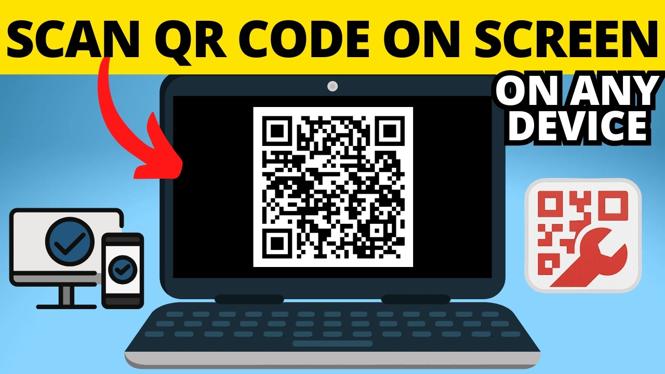
You do not need to point your camera at a QR code to use it. If the code is already saved as a photo, screenshot, or image someone sent you, you can scan the picture directly and open or copy its contents.
The quickest option is to open the image on your phone and use the QR code detection control that appears. If your phone does not show that control, or if the QR code is saved on a computer, use the QRCodeGadget QR code decoder to read the image.
Video Tutorial
Scan a QR code picture already saved on your phone
Start by opening the photo or screenshot that contains the QR code. This works when you took a photo of a printed code, received an image in a message or email, or saved a QR code from a website.
- Open the picture of the QR code on your phone.
- Look for the small QR code detection box on the image.
- Select the box, then select the detected QR code.
- Review the content shown by your phone.
- Select the web address if the QR code contains a website link.
Your phone should open the website associated with the code. A QR code can contain more than a web address, though. It may include Wi-Fi network details, plain text, or other information. Check the displayed content before opening anything or connecting to a network.
If you do not see a QR code detection box, take a screenshot of the QR code if needed. You can then decode that screenshot in your browser with QRCodeGadget.
Use QRCodeGadget to scan a QR code image
QRCodeGadget is useful on a phone, Windows PC, or Mac. The QR code decoder lets you choose an image file and view what the code contains. The QR code image you select is not uploaded to QRCodeGadget servers. Decoding happens in your browser using JavaScript.
- Open your web browser and go to QRCodeGadget.com.
- Select QR Code Decoder.
- Choose Image.
- Select the picture or screenshot containing the QR code.
- On a phone, you may need to choose Photo Library to locate the image.
- Select the QR code image, then choose Done if your device shows that option.
- Wait for the decoder to process the image.
When the scan finishes, look for the message Code decoded successfully. The decoded contents appear on the page. If the result is a web address, you can copy it and paste it into your browser. This gives you a chance to inspect the address before visiting it.
Scan a QR code screenshot
A screenshot is the easiest fix when the QR code is visible on the same device you are using. For example, someone may send the code in a chat, include it in an email, or display it on a webpage. You cannot point your camera at a code that is already on your screen, so save it as a screenshot first.
- Take a screenshot that includes the full QR code.
- Open the screenshot in your phone’s photo viewer and check for the QR code detection box.
- If the code is detected, select it and open or review the result.
- If it is not detected, open QRCodeGadget.com in a browser.
- Select QR Code Decoder, then choose the screenshot as an Image.
Make sure the entire code is visible in the screenshot. Cropping off part of the square pattern can prevent a successful scan. A clear image also helps, especially if the original QR code is small, blurry, tilted, or covered by part of a notification.
Open the result safely
After you scan a picture of a QR code, do not assume the result is safe just because the code came from an image. Review the decoded text first. For a website, check that the domain is one you recognize before you paste or open the address.
If the result contains Wi-Fi information, the decoder can show the details stored in the code. This is helpful when you need to verify what network information the QR code contains instead of connecting without checking it.
If the decoder cannot read the image, try a new screenshot or use the original photo file. Keep the QR code large and sharp, with all four corners visible. Then upload or select that clearer image through QR Code Decoder again.
Choose the method that fits your device
Use your phone’s built-in QR detection when the small QR code box appears in the photo. It is the fastest way to handle a saved image. Use QRCodeGadget when no detection control appears, when you need to scan a screenshot, or when the QR code picture is stored on a Windows PC or Mac.
Both methods let you scan a QR code from a picture without using your camera on a physical code. Once decoded, you can see the content and decide what to do with it.
Discover more from Gauging Gadgets
Subscribe to get the latest posts sent to your email.