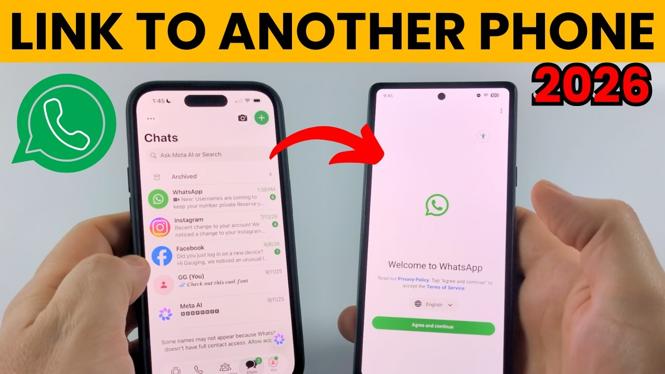
You can link your existing WhatsApp account to a second phone without replacing the phone you already use. The second phone becomes a companion device, so it can access the same account and your chats. You only need WhatsApp installed on the second phone and both phones available while you complete the QR code step.
Video Tutorial
Set up the second phone first
Start on the phone you want to add to your WhatsApp account. This can be another phone that you want to use alongside your main phone. Do not enter your phone number on this device. Instead, use the companion-device option when WhatsApp reaches the phone-number screen.
- Install WhatsApp on the phone you want to link.
- Open WhatsApp.
- Select Agree and continue.
- When WhatsApp asks for your phone number, select the three dots in the top-right corner.
- Select Link as companion device.
WhatsApp now displays a QR code on the second phone. Leave this screen open. You will scan this code using the phone that already has your WhatsApp account.
Link WhatsApp from your main phone
Now pick up the phone where you are currently signed in to WhatsApp. The video shows the WhatsApp app with the You tab in the bottom menu. This is where you can manage devices connected to your account.
- Open WhatsApp on your main phone.
- Select You in the bottom menu.
- Scroll down and select Linked devices.
- Select Link a device.
- Select OK.
- Use the camera that opens to capture the QR code on the second phone.
Keep both phones on this screen until the scan completes. Once WhatsApp recognizes the QR code, it begins signing the second phone into the same account.
Wait for your chats to load
After you scan the code, the second phone may show that it is looking for your chats or gathering information about your account. This is the normal part of the linking process. Give WhatsApp time to transfer the account information to the newly linked phone.
When the process finishes, you can use the same WhatsApp account on both phones. Your main phone remains signed in, and the linked phone gives you another place to view and send messages from that account.
What the QR code does
The QR code confirms that you have access to the WhatsApp account already active on your main phone. It connects the phone showing the code as a companion device. That is why you should use the QR code option on the second phone rather than type your phone number into the standard sign-in screen.
If you enter a phone number instead, you are no longer following the companion-device setup shown here. Go back to the screen that asks for your number, open the three-dot menu, and choose Link as companion device to display the QR code again.
Quick checklist before you start
- WhatsApp is installed on the phone you want to add.
- The second phone is at the WhatsApp phone-number screen.
- You selected Link as companion device on that phone.
- The QR code remains visible on the second phone.
- Your current WhatsApp phone is open to You, then Linked devices.
The important part is using each phone for its separate role. The second phone shows the QR code. Your current WhatsApp phone opens Linked devices and scans it. Once the account information finishes loading, both phones use the same WhatsApp account.
More WhatsApp Tips & Tutorials:
 Subscribe Now! 🙂

Discover more from Gauging Gadgets
Subscribe to get the latest posts sent to your email.