If the App Store is missing from your iPhone, it is usually still installed. It may have been removed from the Home Screen, or a Screen Time restriction may be hiding it completely. Start by checking the App Library. If the App Store does not appear there, review the iTunes and App Store purchase restrictions.
Check the App Library first
The App Library holds apps that are not currently visible on a Home Screen page. This is the quickest way to tell if the App Store was only removed from your Home Screen.
- Swipe from right to left through your Home Screen pages until you reach the App Library.
- Select the search field at the top of the App Library.
- Type app.
- Look for App Store in the results.
If you see the App Store, the app is available on your iPhone. You can open it directly from the search results. If you had previously placed it on your Home Screen, it may also return there after you correct any restriction that was hiding it.
Video Tutorial
Why the App Store can disappear
The App Store is a built-in iPhone app, so it is not normally something you need to download again. When it does not show up in App Library search, a content restriction is likely preventing it from appearing.
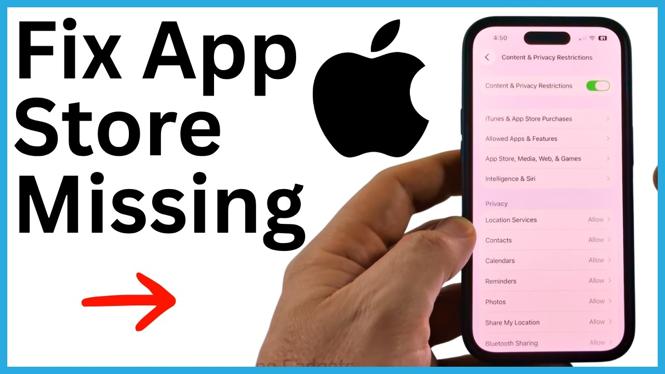
Screen Time includes settings that control iTunes and App Store purchases. If these settings are set to Don’t Allow, the App Store can disappear from App Library search and from the Home Screen. Changing the affected settings back to Allow brings it back.
Allow App Store purchases in Screen Time
Use the Settings app to check the restriction responsible for the missing App Store icon.
- Open Settings on your iPhone. If you cannot locate it on the Home Screen, search for settings from the App Library.
- Scroll down and select Screen Time.
- Scroll down and select Content & Privacy Restrictions.
- Enter the required code if prompted. You may also need to enter your Apple ID password.
- Select iTunes & App Store Purchases.
- Open each of the three available options.
- Set all three options to Allow.
After changing the options, return to the App Library. Select its search field and type app again. The App Store should now appear in the results.
If the settings are already set to Allow
Go back to the App Library and search for the App Store one more time. The App Library search is useful because it checks apps that may not be visible on your current Home Screen layout.
If the App Store appears in the search results, open it there. If it had been on your Home Screen before the restriction changed, it can reappear on the Home Screen after you set the purchase options to Allow.
If you are asked for a Screen Time code or Apple ID password that you do not have, the restriction may have been set by the person who manages the iPhone. You will need that authorization before you can change the content and privacy settings.
Quick checklist
- Swipe to the App Library and search for app.
- If App Store is listed, open it from the results.
- If it is not listed, open Settings.
- Go to Screen Time, then Content & Privacy Restrictions.
- Open iTunes & App Store Purchases.
- Set each of the three options to Allow.
- Search the App Library again to confirm that App Store is back.
These steps cover the two common reasons for an App Store missing on iPhone. Checking App Library handles a missing Home Screen icon, while Screen Time settings fix an App Store that has been hidden by content restrictions.
More iPhone Tips & Tutorials:
 Subscribe Now! 🙂

Discover more from Gauging Gadgets
Subscribe to get the latest posts sent to your email.