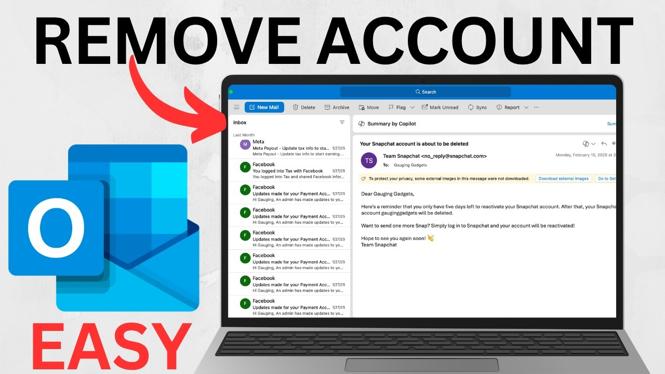
Removing an email account from Outlook stops that address from receiving new messages and notifications in the Outlook app on your computer. It does not delete the email address itself. You can still use the account elsewhere, including through its email provider or another mail app.
This is useful when you no longer use an address, changed jobs, or want to keep your Outlook account list tidy. The account is removed only from this Outlook app installation.
Video Tutorial
Remove an email account in Outlook
You will remove the account from the Outlook settings screen. Before you start, make sure you choose the correct address. Once removed, Outlook will no longer sync that account on this computer.
- Open the Outlook app on your computer.
- Select the gear icon in the top-right corner to open Settings.
- Under Accounts, select Your accounts.
- Look for the Email accounts section. This shows the email accounts currently connected to Outlook.
- Find the email account you want to disconnect.
- Select Manage next to that account.
- Scroll down in the account settings.
- Select Remove.
- When Outlook asks you to confirm, select Remove again.
The selected account is now removed from Outlook. It should no longer deliver email or notifications through the Outlook app on that computer.
What removing the account changes
Removing an account from Outlook and deleting an email account are different actions. These steps only disconnect the address from Outlook. They do not close the mailbox or erase the email address with its provider.
After removal, that address no longer appears as an active email account in Outlook’s account list. Outlook also stops checking the account for incoming messages, so alerts for that address should stop in the app.
If you later decide you need the address in Outlook again, you would need to add it back to the app. This guide covers removing an existing account, not deleting it permanently.
Check that the right account was removed
Return to Settings, then open Accounts and Your accounts. Review the accounts listed under Email accounts. The address you removed should no longer be listed there.
If several addresses have similar names, take a moment to review the full email address before selecting Manage. This helps you avoid disconnecting an account you still need.
If you only want fewer notifications
Removing the account is the right choice when you no longer want Outlook to receive messages for that address on this computer. It is not a temporary notification setting. The address is disconnected from the app until you add it again.
If you still need to read and send mail from the account in Outlook, do not remove it. Keep it connected instead. Remove only accounts that are old, unused, or no longer needed in this Outlook app.
Quick reminder before you remove an account
Confirm that you are signed into the Outlook app on the computer where you want the account removed. Changes made here apply to Outlook on that computer. Removing the address does not mean the mailbox has been deleted, and it does not prevent you from accessing the email account through other services.
Once you confirm Remove, Outlook disconnects the selected address. Check the Email accounts list afterward to make sure your remaining accounts are still connected.
More Outlook Tips & Tutorials:
 Subscribe Now! 🙂

Discover more from Gauging Gadgets
Subscribe to get the latest posts sent to your email.