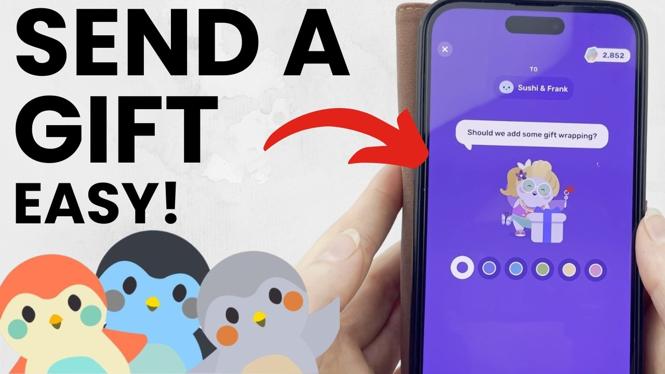
Send an item directly from the Shop
You can send a friend a furniture or outfit item without buying it for yourself first. Open the Finch Care app, choose an item in the Shop, then use the Send Gift option. Before you send it, Finch Care lets you choose the friend and customize the gift wrap color.
Sending a Shop gift costs 200 additional rainbow stones. You can also send only one gift to each person per day, so check the recipient before you confirm the gift.
Video Tutorial
How to send a gift from the Finch Care Shop
- Open the Finch Care app.
- Select Shop from the bottom menu.
- Choose the type of item you want to send. The Shop includes furniture and outfit items.
- Find the specific item you want your friend to receive, then select it.
- Wait for the item to load in your little birdhouse.
- Select Send Gift.
- Find the friend you want to receive the item, then select Send next to their name.
- Choose a color for the gift wrap. You can pick from the available color options before sending.
- Select Send Gift to finish.
After you confirm, Finch Care should show a pop-up letting you know that the gift was sent. That confirmation is useful because it tells you the item has been delivered through the app and your rainbow stones have been used for the transaction.
Know the rainbow stone cost first
The item itself has its own Shop price. On top of that price, Finch Care charges 200 additional stones when you send an item as a gift. Make sure you have enough rainbow stones to cover both the item and the extra gifting cost before starting.
If the gift option does not go through, check your available stones and confirm that you selected a recipient. It also helps to make sure you have not already sent that same friend a gift that day.
One gift per friend each day
Finch Care limits you to one gift per person per day when sending directly from the Shop. This limit applies to the person receiving the gift. You can still choose another friend if you want to send a different gift, as long as you have enough stones and follow the same Shop steps.
If you planned to send several items to one friend, spread those gifts across different days. Pick the item you want to send most, use the Shop gifting option, and save the other item for later.
How to handle an item you already want to give
The direct Shop method is for an item you are currently viewing in the Shop. If you have multiple Shop items you want to share, you can purchase an item for yourself first. That puts the item in your bag instead of immediately sending it as a Shop gift.
You can then use the separate bag gifting process to send an item to a friend on another day. This is helpful when you want to plan ahead, buy an item while it is available, or avoid the one-gift-per-person daily limit for direct Shop gifts.
Quick checklist before you confirm
- You selected the correct furniture or outfit item.
- You chose the intended friend from the recipient list.
- You picked the gift wrap color you want.
- You have enough stones for the item and the extra 200-stone gift cost.
- You have not sent that friend another direct Shop gift today.
Once those details look right, select Send Gift and wait for the confirmation pop-up. Your friend will receive the Shop item as a gift.
More Finch Self-Care Tips & Tutorials:
 Subscribe Now! 🙂
Discover more from Gauging Gadgets
Subscribe to get the latest posts sent to your email.