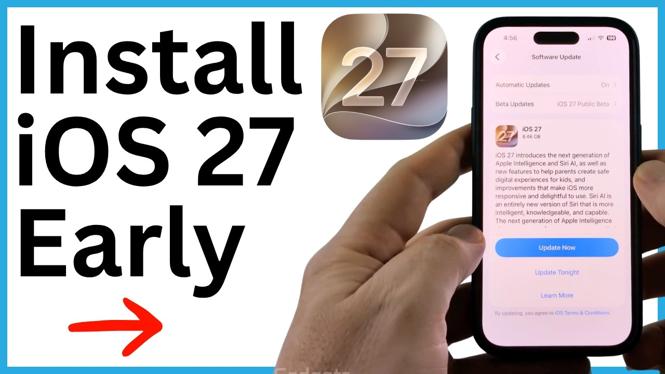
You can get iOS 27 early by joining the Apple Beta Software Program, enabling iOS 27 Public Beta in Software Update, and installing the available update. The video uses the iOS 27 release candidate, which Apple provides through its beta program shortly before the public release.
Back up your iPhone first. An iCloud backup gives you a current copy of your phone before you change its system software. You should also keep your iPhone charging while the update downloads and installs.
Video Tutorial
Back up your iPhone to iCloud
Start with a manual iCloud backup. Let it finish before moving on to the beta enrollment and installation steps.
- Open Settings on your iPhone.
- Select the first option at the top, then select iCloud.
- Scroll down and choose iCloud Backup.
- Select Back Up Now and allow the backup to complete.
Do not rush through this part. The rest of the process changes the iOS version installed on your iPhone, so having a recent backup is a sensible first step.
Join the Apple Beta Software Program
After your backup completes, enroll the iPhone in Apple’s beta program. This is what makes the iOS 27 beta option appear in the Software Update screen.
- Open a browser on your iPhone.
- Go to beta.apple.com.
- Scroll down and select Sign Up.
- Choose Sign In with Passcode.
- Enter your iPhone passcode.
- Read the agreement, then select Agree.
When you reach the beta software guide, your Apple account has joined the program. You can now return to Settings and choose the beta update you want to receive.
Enable iOS 27 Public Beta
The update may not show immediately in the normal Software Update view. You need to select the beta update channel first. If you initially see iOS 26, that is the publicly available version shown before the beta option is enabled.
- Open Settings.
- Scroll down and select General.
- Select Software Update.
- At the top of the screen, select Beta Updates.
- Select iOS 27 Public Beta.
- Select the back button to return to the Software Update page.
iOS 27 should now appear as an available update. The video refers to the available late beta as the release candidate. A release candidate is the beta version Apple releases when it is close to the public iOS 27 launch.
Download and install iOS 27 early
Once iOS 27 appears in Software Update, you can begin the installation from the same screen.
- Select Update Now.
- Enter your passcode when prompted.
- Review and agree to the displayed terms.
- Keep the iPhone connected to power while it requests, downloads, and installs the update.
Give the iPhone time to finish. The display will restart during installation, and you will eventually see the Hello screen. This is expected as the phone completes the update process.
If your iPhone needs more storage
You may see a message asking to temporarily remove apps to install the update. This means the iOS installation file needs additional space.
Select Optimize Storage if you receive this prompt. The iPhone temporarily removes the app files needed to create enough room for the update, then reinstalls them after iOS 27 is installed. You should not need to treat this as a permanent app removal.
Finish iOS 27 setup
After the installation, swipe up from the Hello screen and enter your passcode. Your iPhone will state that it has been updated to iOS 27. Select Continue, then work through the feature setup screens.
You can choose Set Up Later for features you do not want to configure right away. When you reach the final screen, select Get Started. Your iPhone is then running iOS 27 before its full public rollout.
If iOS 27 does not appear after you choose iOS 27 Public Beta, return to Settings, General, and Software Update and allow the page time to load. Confirm that the beta selection is still set to iOS 27 Public Beta before checking for the update again.
More iPhone Tips & Tutorials:
 Subscribe Now! 🙂

Discover more from Gauging Gadgets
Subscribe to get the latest posts sent to your email.