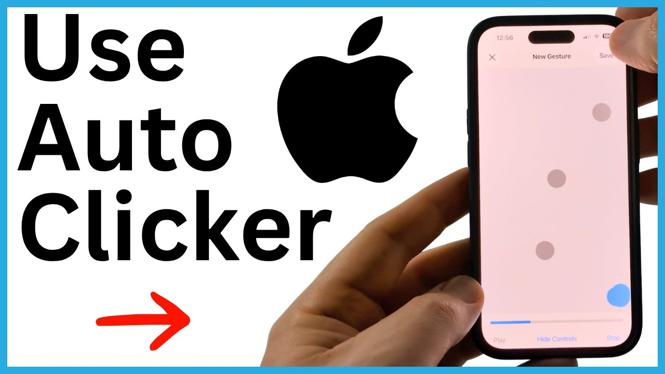
You can make an auto clicker on iPhone with the built-in Switch Control accessibility feature. The setup has three parts: create a full-screen tap switch, record a custom gesture, then assign that gesture as a recipe. Once it is ready, you can turn Switch Control on or off with a triple press of the power button.
This is useful when you need the same screen location tapped repeatedly, such as refreshing a page or handling a repeated action in an app. You do not need to download an extra app for this method.
Video Tutorial
Create the full-screen tap switch
First, add the switch that will trigger the tap action. The full-screen option means the switch can be activated from anywhere on the display.
- Open Settings on your iPhone.
- Scroll down and select Accessibility.
- Scroll down again and choose Switch Control.
- Select Switches.
- Tap Add New Switch.
- Select Screen, then choose Full Screen.
- Scroll down and select Tap.
You may see other switch options in this area. For this auto clicker setup, use Tap. This gives your custom recipe a full-screen tap switch to work with.
Record your auto clicker recipe
A recipe is the saved action that Switch Control will perform. You can use one of the existing recipes shown in the menu, but recording a custom gesture lets you choose the exact location and timing of each tap.
- Return to the main Switch Control screen.
- Select Recipes.
- Choose Create New Recipe.
- Enter a name for the recipe.
- Select Assign a Switch.
- Choose Full Screen.
- Select Custom Gesture.
On the Custom Gesture screen, tap the places where you want the iPhone to tap automatically. The progress bar at the bottom represents the timing of the gesture. The taps you make, along with the timing between them, become the repeated pattern.
For a simple one-location auto clicker, tap once at the spot you need. For a more involved pattern, tap multiple locations in the order you want them performed. When you finish recording the gesture, select Save and give the saved gesture a name.
Set the recipe to launch
Saving the custom gesture does not activate it by itself. You still need to tell Switch Control which recipe it should run.
- Go back to the main Recipes screen.
- Select Launch Recipe.
- Choose the recipe you just created.
At this point, the switch and the recipe are configured. The full-screen switch is set up for tapping, and your selected launch recipe contains the custom gesture you recorded.
Add Switch Control to the accessibility shortcut
The accessibility shortcut makes the auto clicker much easier to start when you need it. Instead of going back through Settings each time, you can use a triple press of the power button.
- Go back to the Switch Control screen.
- Scroll all the way to the bottom.
- Select Accessibility Shortcut.
- Scroll down and select Switch Control.
If you have more than one item selected in the Accessibility Shortcut list, a menu can appear after the triple press. In that case, select Switch Control from the menu. If it is the only selected shortcut, it may start immediately.
Start and stop the auto clicker
Open the app, browser, game, or form where you need the repeated taps. Make sure the screen is showing the area where you recorded the gesture. Then triple tap the power button and select Switch Control if prompted. The saved recipe will perform the taps according to the locations and timing you set.
To stop the auto clicker, triple tap the power button again. This turns off Switch Control and stops the automatic tapping.
If the taps are landing in the wrong place, turn Switch Control off first. Then return to Recipes, open your recipe, and record the Custom Gesture again with the correct screen location and timing. Naming recipes clearly also helps if you create different patterns for different tasks.
More iPhone Tips & Tutorials:
 Subscribe Now! 🙂

Discover more from Gauging Gadgets
Subscribe to get the latest posts sent to your email.