Convert PDF Pages to JPG Images for Free
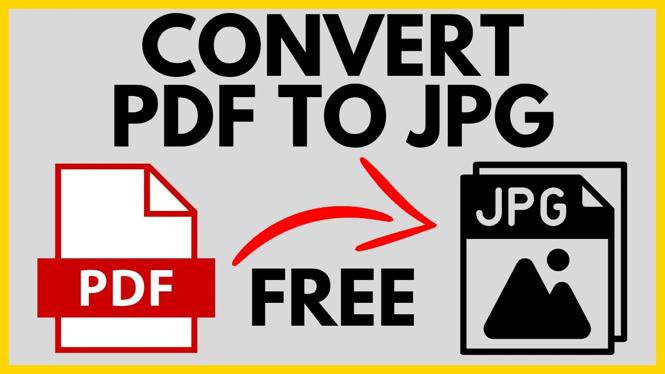
If you need to turn a PDF page into an image, PDFGadget can convert it to a JPEG file directly in your web browser. You can convert one page or choose several pages from the same PDF. This is useful when you need to upload a document page as an image, send it in a message, or open it in an image editor.
PDFGadget works on your phone, computer, or Chromebook. The conversion runs in your browser, so you do not need to upload the PDF to a server. You can select JPEG as the image format, preview the PDF pages, and download the images you want.
Video Tutorial
Convert a PDF to JPG with PDFGadget
JPG and JPEG refer to the same image format. In PDFGadget, the format option is labeled JPEG. Before you start, make sure you know where the PDF is saved on your device.
- Open PDFGadget.com in your web browser.
- Select PDF to image under the popular tools. You can also select More PDF Tools from the top menu, then choose PDF to image.
- Select the PDF file you want to convert, then open it.
- Under Image Format, select JPEG.
- Wait for PDFGadget to load a preview of every page in the PDF.
- Select the page or pages you want to save as JPG images.
The page preview lets you choose only the pages you need. Check the selected-page count before downloading, especially if the original PDF has many pages. Use Select All when you want to convert every page, or use Unselect All to clear your current choices and start again.
Download One PDF Page as a JPG
When your PDF has one selected page, downloading is simple. Find that page in the preview and select Download below it. Save the resulting JPEG image in a folder you can find easily.
After the download finishes, open the image to check it. You can then upload the JPG to a website, attach it to an email, send it to someone, or use it in another app. The PDF page is now a separate image file rather than part of the original document.
Download Multiple PDF Pages as JPG Images
Each PDF page becomes its own JPEG image. Because of that, PDFGadget packages multiple selected images into one ZIP file instead of downloading each one separately.
- Select every PDF page you want to convert.
- Select Download.
- Choose Download as ZIP.
- Save the ZIP file to your device.
The ZIP file keeps all of the converted JPG images together. This is helpful for multi-page PDFs such as certificates, forms, reports, or scanned documents. You will need to extract the ZIP file before you can use the individual images.
Extract the JPG Images From the ZIP File
On a Windows computer, locate the ZIP file you downloaded. Right-click the file, choose Extract All, then select Extract. Windows opens a new folder containing the JPEG images.
Open the folder and look through the files to find the page you need. From there, you can open the JPG, rename it, move it to another folder, upload it, or share it. Keep the ZIP file if you want an extra copy of all the converted pages in one place.
Choose Only the Pages You Need
You do not have to convert an entire PDF just because it contains multiple pages. Select only the relevant pages before downloading. For example, if a PDF has ten pages but you only need pages two and six as images, select those two pages and download them as a ZIP file.
If you only need one page from a longer document, select that page by itself. You can then use the single-page download option and avoid extracting a ZIP file. Checking your selected pages before you download helps keep your files organized and prevents extra images from being created.
What You Get After Conversion
The result is a JPEG image for each PDF page you selected. You can use those JPG files where an image is required but a PDF is not accepted. This includes image uploads, sharing a page in a chat, or saving a document page as a picture for later use.
If you convert more than one page, remember that the downloaded ZIP file contains separate JPG images. Extract it first, then work with the individual files inside. That gives you a quick way to convert PDF pages to JPG images without installing software or paying for a converter.
More PDF Tools & Tutorials:
 Subscribe Now! 🙂

Discover more from Gauging Gadgets
Subscribe to get the latest posts sent to your email.