Turn the iPhone flashlight on in a few seconds
You can turn on the flashlight from the Lock Screen without opening your iPhone. You can also use Control Center after unlocking it. Both methods use the flashlight icon, and you can adjust the light intensity after turning it on.
If you do not see the flashlight control in Control Center, you can add it back from the Control Center editing screen. The steps below cover each option shown in the video.
Video Tutorial
Use the Lock Screen flashlight button
The Lock Screen is the fastest place to access the flashlight when your iPhone is locked. Press the power button to bring up the Lock Screen, then check the bottom of the screen for the flashlight icon.
- Press the power button to display the Lock Screen.
- Locate the flashlight icon near the bottom of the screen.
- Long press the flashlight icon briefly.
- Wait for the flashlight to turn on.
In the video, the flashlight icon appears in the bottom-left corner. On some iPhones, it may appear on the bottom-right side instead. Look for the small flashlight symbol rather than relying only on its position.
Once the flashlight is on, an intensity adjustment appears. Use that adjustment to make the light brighter when you need more visibility. Setting the intensity higher gives you a brighter flashlight output.
To turn the flashlight off from the Lock Screen, long press the flashlight icon again. You do not need to unlock the iPhone first.
Turn on the flashlight from Control Center
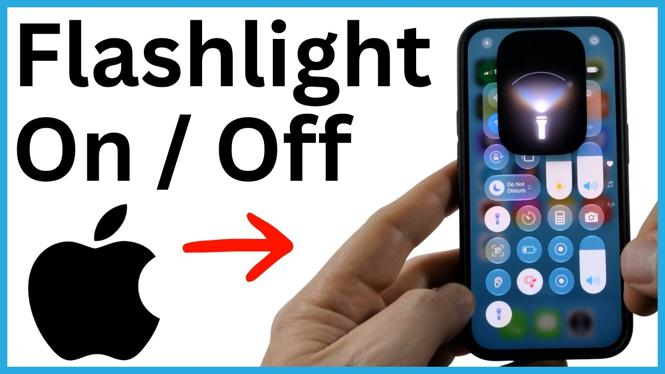
Control Center gives you another quick way to control the flashlight. This is useful when you are already using your iPhone and do not want to return to the Lock Screen.
- Unlock your iPhone by swiping up and entering your passcode.
- Swipe down from the top-right corner of the screen to open Control Center.
- Find the control that looks like a flashlight.
- Tap the flashlight control to turn the flashlight on.
Make sure you swipe down from the top-right corner, not from the center of the screen. Once Control Center is open, the flashlight control works as an on and off switch. Tap it once to turn the light on, then tap it again to turn it off.
When the flashlight is active, you can also use the small dot at the top of the flashlight control to change the intensity. Choose a higher intensity when you need a stronger light, or lower it when you only need a small amount of light.
Add the flashlight control to Control Center
If you cannot find the flashlight icon in Control Center, add it through the Control Center customization options. The flashlight is listed as a utility control.
- Open Control Center by swiping down from the top-right corner.
- Select the plus symbol.
- Select Add a Control at the bottom of the screen.
- Use the search field at the top and type flashlight.
- Under Utilities, select Flashlight.
- Select an empty area of the screen to save the Control Center layout.
The Flashlight control is added to the bottom of Control Center. After that, open Control Center whenever you need it and tap the flashlight icon to switch the light on or off.
Adjust flashlight brightness and turn it off
You do not have to use the flashlight at full brightness every time. After you turn it on from the Lock Screen or Control Center, use the available intensity control to select the brightness you need. A higher setting makes the flashlight brighter.
When you are finished, turn it off from the same place you used to turn it on. Long press the Lock Screen flashlight icon if you used the Lock Screen. If you used Control Center, tap the flashlight control again.
Using the Lock Screen button is best when your iPhone is locked and you need light right away. Control Center is useful when your phone is already unlocked, and it also gives you a simple way to add the flashlight control if it is missing.
More iPhone Tips & Tutorials:
 Subscribe Now! 🙂

Discover more from Gauging Gadgets
Subscribe to get the latest posts sent to your email.