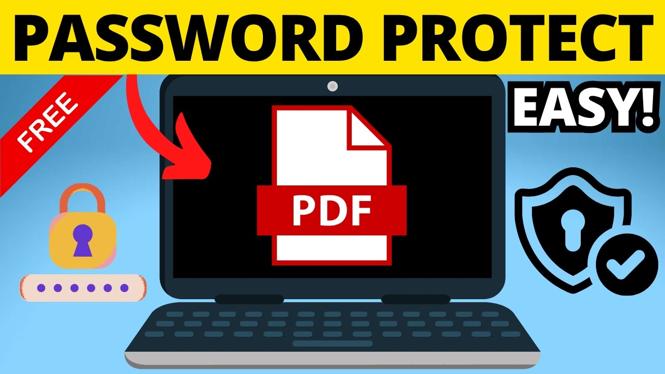
A PDF is not password protected just because you share it privately. If someone gets a copy, they can usually open it without any restriction. PDF Gadget lets you encrypt a PDF in your browser, so the file asks for a password before its contents can be viewed.
This method does not require Adobe Acrobat. PDF Gadget works directly in the browser on a phone, computer, or Chromebook, and you do not need to upload the PDF to a server to use the tool.
Video Tutorial
Add a password to your PDF
You will need the PDF file you want to protect and a password you can share safely with the people who need access. Choose the password before starting. A longer password with a mix of characters is harder to guess than a short word or date.
- Open PDF Gadget in your browser.
- Select Password Protect PDF under the popular tools. You can also open the menu, choose More PDF Tools, then select Password Protect.
- Wait for the password protection tool to load.
- Drag your PDF into the upload area, or select the file area to browse for the PDF on your device.
- Enter the password you want to use in the password field.
- Check the password strength message shown by the tool. If it is weak, use a longer and less predictable password before continuing.
- Enter the same password again to confirm it.
- Review the encryption information. PDF Gadget encrypts the file using the strongest option available on your device. Some devices may not support AES-256, so check the level displayed by the tool.
- Agree to the terms.
- Select Protect PDF.
Give the tool a moment to process the file. When the status says the job is complete, select the download option to save your protected PDF.
Test the protected file before sharing it
Do not assume the password was applied just because the download completed. Open the new PDF file you downloaded. A properly protected document prompts you for a password before showing the file.
- Open the downloaded PDF in your usual PDF viewer.
- Confirm that it asks for a password.
- Enter the password you created.
- Make sure the document opens and that its pages display normally.
If the PDF opens without asking for a password, make sure you are opening the new downloaded file rather than the original PDF. The original file remains unprotected unless you replace it yourself.
Verify the PDF encryption level
PDF Gadget also includes a security checker if you want to confirm the file is encrypted. This is useful when you are protecting sensitive information and want to check the result before sending the document.
- On PDF Gadget, select Verify Your PDF Security.
- Select the PDF you just protected.
- Agree to the terms.
- Select the option to analyze the PDF.
The results show whether the file is protected and display its encryption level. For example, a PDF protected with AES-256 will be reported as encrypted with 256-bit encryption.
Keep the password separate from the PDF
Password protection is only useful if the password is handled carefully. Avoid sending the protected PDF and its password together in the same email or message. If a person gains access to that message, they have everything needed to open the document.
Instead, send the PDF through one method and provide the password through a separate method. You can also agree on the password in person or use a password the recipient already knows. Make sure the recipient knows that the file will request a password when they open it.
Keep a copy of the password somewhere safe. If you forget it, opening your own protected PDF may not be possible. Also keep the original unprotected PDF in a secure location if you may need to make edits later.
What password protection does and does not do
A password-protected PDF prevents someone from opening the file without the password. It is a good option for documents such as resumes, financial records, forms, identification documents, and private work files.
Once an authorized person opens the document, they can still view its contents. Before sharing, only include information that the recipient needs. Use a strong password and share it only with people who should have access to the PDF.
More PDF Tools & Tutorials:
 Subscribe Now! 🙂

Discover more from Gauging Gadgets
Subscribe to get the latest posts sent to your email.