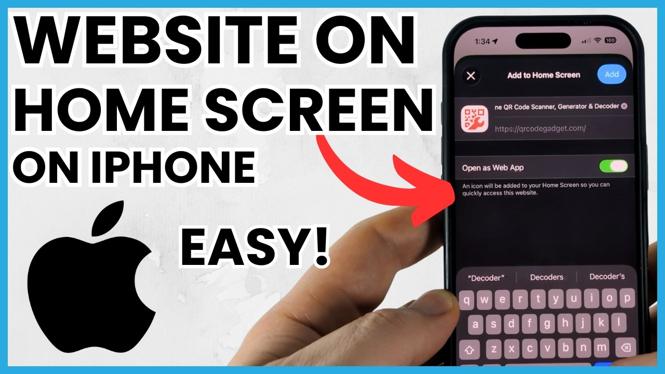
Adding a website to your iPhone Home Screen gives you a one-tap shortcut to that page. Instead of opening Safari and entering the address again, you can tap an icon alongside your apps. It is useful for sites you check often, such as a dashboard, news page, online store, school portal, or a page you want to keep handy.
You do this from Safari. The shortcut opens the website directly, so it works like a quick link on your Home Screen rather than a downloaded app.
Video Tutorial
Add a website shortcut in Safari
- Open Safari on your iPhone.
- Go to the website or exact web page you want to save. Wait for the page to finish loading so you can check that you are on the right link.
- Open Safari’s sharing options.
- Choose Add to Home Screen.
- Review the shortcut name. Change it if you want a shorter label under the icon.
- Tap Add to place the website on your Home Screen.
Your iPhone adds an icon for the site. Return to the Home Screen and tap that icon whenever you want to open the saved page. You do not need to search for the site or type its web address each time.
Pick the right page before you add it
The shortcut saves the page currently open in Safari. This matters if a website has several sections. For example, you may want a shortcut to a specific account sign-in page, a particular product category, a sports scores page, or a booking page instead of the website’s main page.
Take a second to confirm the address and the page title before adding it. If you save the wrong page, you can still make a new shortcut later, but checking first saves time. A direct shortcut is especially helpful when the page sits several taps deep inside a larger site.
Keep the shortcut name clear as well. The default name may be long, which can make the Home Screen label harder to read. Use a short name that tells you what the page is, such as Bank Login, Course Portal, Weather Map, or Order Status.
Find and use the new Home Screen icon
After you tap Add, look through your Home Screen pages for the new icon. If you have many apps and shortcuts, it may appear on a later page. You can move it like other Home Screen items and place it somewhere easier to reach.
Tap the icon to open the saved website. The page will load from the internet, so you still need a working Wi-Fi or mobile data connection for most sites. The shortcut does not store the full website on your phone. It simply gives you a faster route back to that web page.
This is a good option for websites that do not have an app, or for pages where the app is unnecessary. You can keep a few key sites on your Home Screen without filling it with extra downloads.
Edit or remove a website shortcut
If the website changes its address or you decide you no longer need the shortcut, remove it from the Home Screen and add the correct page again from Safari. This is also the simplest way to fix a shortcut with the wrong name or one that opens a page you did not intend to save.
To keep things organized, group related website shortcuts in the same area of your Home Screen. You might keep work pages together, save shopping sites near each other, or place daily-use links on your first Home Screen page. A shortcut only helps if you can spot it quickly.
When a Home Screen website shortcut helps most
Use this feature for pages you visit repeatedly but do not want to bookmark and hunt down in Safari. It is also useful when you share an iPhone with family members and want an easy route to a commonly used site. Each icon has one job, open the page you saved.
Once you have added one website to your iPhone Home Screen, repeat the same process for other pages you use often. Open the page in Safari, choose Add to Home Screen, give it a useful name, and add it. In a few taps, your most useful websites can sit right beside your apps.
More iPhone Tips & Tutorials:
 Subscribe Now! 🙂

Discover more from Gauging Gadgets
Subscribe to get the latest posts sent to your email.