Pair the controller from Android settings
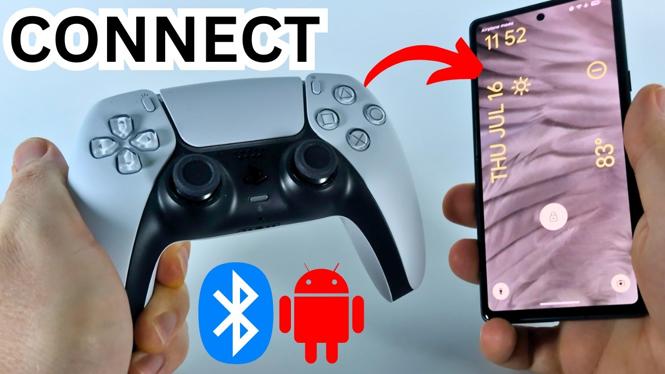
You can connect a PS5 DualSense controller to an Android phone or tablet over Bluetooth. The key is putting the controller into pairing mode first, then selecting it from the list of nearby Bluetooth devices on Android.
When the pairing works, the blue light around the edges of the controller stops blinking. You can then use the controller in compatible Android games, including games such as Fortnite and Call of Duty.
Video Tutorial
What you need before pairing
Have your Android phone or tablet nearby and make sure your PS5 controller is available. You will need to access the Android Settings app and wait briefly while the phone searches for Bluetooth devices.
The controller must be in Bluetooth pairing mode before it appears in the Android device list. Do not skip this part. If the controller is not blinking blue, Android may not show it as an available device.
Connect a PS5 controller to Android with Bluetooth
-
Pick up your PS5 DualSense controller.
-
Press and hold the PlayStation button and the button at the top left of the controller at the same time.
-
Keep holding both buttons until you see a blue light blinking around the edges of the controller. This means the controller is in Bluetooth pairing mode.
-
Open the Settings app on your Android phone or tablet.
-
Select Connected devices.
-
Select Pair a new device at the top of the screen.
-
Wait for Android to search for nearby Bluetooth devices. Look for DualSense Wireless Controller in the list.
-
Select DualSense Wireless Controller.
-
Android may ask for permission related to contacts or call history. The controller does not need access to either one, so select Pair.
Check that the controller is connected
Look at the blue lights on the PS5 controller after you choose Pair. The lights should stop blinking once the Bluetooth connection is complete. This is the easiest sign that your Android device has paired with the controller.
You should also see the controller listed through the connected-device area of Android settings. At this point, you can leave Settings and open a game that supports controller input.
Use the DualSense controller in Android games
After pairing, launch a compatible game on your phone or tablet. The PS5 controller can control your player in supported mobile games. Fortnite and Call of Duty are examples mentioned in the video.
Game support matters. Connecting the controller successfully confirms the Bluetooth pairing, but the game you open must support controller controls for the buttons and sticks to control gameplay. If a game supports it, use the controller normally once the game is running.
If DualSense Wireless Controller does not appear
Return to the controller first. You need to see the blue light blinking around its edges before searching on Android. Hold the PlayStation button and the top-left button together again until the blinking starts.
Then go back to Settings, choose Connected devices, and select Pair a new device. Give the device search a moment to refresh. When DualSense Wireless Controller appears, select it and choose Pair when Android displays the pairing prompt.
Once the light stops blinking, the controller is connected and ready for compatible Android games.
More Android Tips & Tutorials:
 Subscribe Now! 🙂

Discover more from Gauging Gadgets
Subscribe to get the latest posts sent to your email.