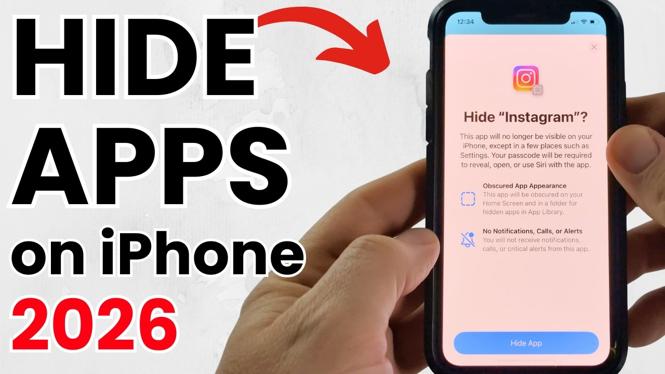
How to Hide Apps on iPhone
In today’s digital age, privacy and organization are paramount for many smartphone users. One common concern among iPhone users is how to keep their home screens tidy while maintaining a level of privacy regarding certain apps. Whether you are looking to minimize distractions, keep sensitive apps hidden from prying eyes, or simply organize your home screen better, knowing how to hide apps on your iPhone can be incredibly useful. Thankfully, Apple has made this process straightforward without the need for any third-party applications or technical expertise. This guide will walk you through the steps to hide apps on your iPhone, applicable for iOS 26, iOS 18, and even previous versions.
Video Tutorial
Why You Might Be Looking for This Tutorial
There are various reasons why you may want to hide apps on your iPhone. Perhaps you wish to declutter your home screen and enhance your user experience by only keeping frequently used applications visible. Alternatively, you may have privacy concerns regarding certain apps that you prefer to keep hidden, especially if you share your device with family or friends. Additionally, hiding apps can help maintain focus by reducing the temptation to access distracting applications unnecessarily. No matter your reason, this guide will provide you with effective techniques to achieve your goals.
Steps to Hide Apps on Your iPhone
Method 1: Hiding Apps on the Home Screen
- Locate the app you desire to hide on your home screen.
- Tap and hold the app icon until a menu appears.
- Select “Remove App” and then choose “Remove from Home Screen.”
- The app is now hidden from your home screen but can still be accessed through the App Library.
Method 2: Using the App Library
- Swipe left until you reach the App Library on your iPhone.
- Locate the app you want to hide.
- Touch and hold the app icon until the context menu appears.
- Select “Remove App” and then choose “Delete App” to permanently remove it or “Remove from Home Screen” to keep it in the App Library.
Method 3: Restricting App Visibility in Search
- Go to your iPhone’s Settings.
- Scroll down and tap on “Siri & Search.”
- Find the app you wish to hide and tap on it.
- Toggle off the options for “Show App” and “Show in Search” to completely hide it from search results.
Method 4: Using Screen Time for Added Privacy
- Navigate to the Settings app on your iPhone.
- Tap on “Screen Time” and then “Content & Privacy Restrictions.”
- Enable Restrictions and select “Allowed Apps.”
- Toggle off any apps you want to restrict visibility for.
Conclusion
Hiding apps on your iPhone can serve various purposes, from improving organization on your home screen to ensuring that your private information remains confidential. Utilizing the methods outlined above, you can easily manage which apps are visible on your device. By following these simple steps, you can create a more personalized and secure iPhone experience. For visual learners, don’t forget to check out the video tutorial linked above for a step-by-step visual guide.
More iPhone Tutorials:
 Subscribe Now! 🙂

Discover more from Gauging Gadgets
Subscribe to get the latest posts sent to your email.