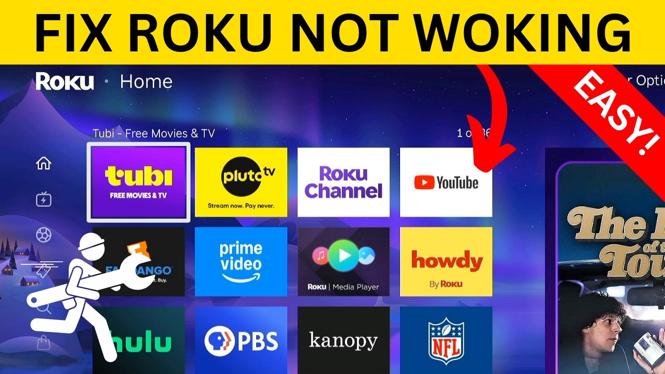
A Roku TV that freezes, buffers, shows a black screen, or crashes channels can often be fixed without replacing anything. Start with a restart, then use the remote reset sequence if the issue continues. These steps can also help when channels will not load or the Roku interface is stuttering.
Video Tutorial
Restart your Roku TV first
A system restart forces Roku to reboot properly. This is different from simply turning the TV off and back on, and it is a good first fix for general glitches, freezing, and channel crashes.
You can restart the device by disconnecting its power for about 30 seconds. Plug the Roku TV, or Roku Streaming Stick, back in and give it time to start up.
You can also restart it from the Roku settings menu.
- From the Roku Home screen, scroll down and select Settings.
- Go right, then select System.
- Select System restart.
- Go right and select Restart.
Wait for the Roku TV to complete its reboot before testing the channel or feature that was causing trouble.
Use the Roku remote hard reset sequence
If a regular restart does not fix the problem, use the remote sequence to force a deeper reboot. This does not delete your apps, account, or other Roku data. It clears cached data and restarts the Roku system.
- Press the Home button five times.
- Press Up once.
- Press Rewind twice.
- Press Fast Forward twice.
After entering the sequence, the Roku TV may cycle through channels, pause, and then restart. Leave it alone while this happens. The screen can appear frozen for a short time, and the restart may take around one to two minutes.
Once the Roku Home screen returns, check whether the original problem is gone. Try opening the channel that was crashing, playing a video that was buffering, or using the part of the Roku interface that was not responding.
Check for a Roku system update
Software problems can remain after a restart if your Roku TV has a pending system update. Checking manually makes sure Roku looks for the latest available update.
- Open Settings from the Home screen.
- Select System.
- Go to Software update.
- Select Check now.
If Roku finds an update, let it download and install. The TV may restart during the update process. Do not unplug it while the update is installing.
Test your network connection
If channels load slowly, video buffers, or streaming freezes, the issue may be your Wi-Fi signal instead of the Roku TV itself. Roku shows the connection details and signal strength in its network settings.
- Open Settings.
- Select Network.
- Check the displayed network name and signal strength.
- Scroll down and select Check connection.
For reliable streaming, the signal strength should show as good or excellent. A weaker signal can cause long loading times, buffering, and channels that fail to start. After the connection check finishes successfully, select OK, return Home, and test streaming again.
Update a channel that is not working
If only one app has a problem, such as a channel that crashes or will not load, check that channel for its own update. You do not need to restart or remove every app on the TV.
- Highlight the channel with the problem on the Roku Home screen.
- Press the Star button on the remote.
- Select Check for updates.
Give Roku a moment to check for an available update. If one is found, allow it to install, then open the channel again.
Remove and reinstall a problem channel
If updating a specific channel does not help, reinstall it. This replaces the installed copy of the app and can fix channel-specific errors. You may need to sign in to the channel again after reinstalling it.
- Highlight the affected channel on the Home screen.
- Press the Star button.
- Select Remove app.
- Confirm that you want to remove the app.
- Go left from the Home screen and select Search.
- Search for the app you removed.
- Select the app, then choose Add app.
Open the newly installed app and sign in if prompted. For most Roku TV freezing, buffering, black screen, and channel-loading issues, the restart, hard reset, update, network check, or channel reinstall process should isolate the cause and get Roku working again.
More Roku Tips & Tutorials:
 Subscribe Now! 🙂

Discover more from Gauging Gadgets
Subscribe to get the latest posts sent to your email.