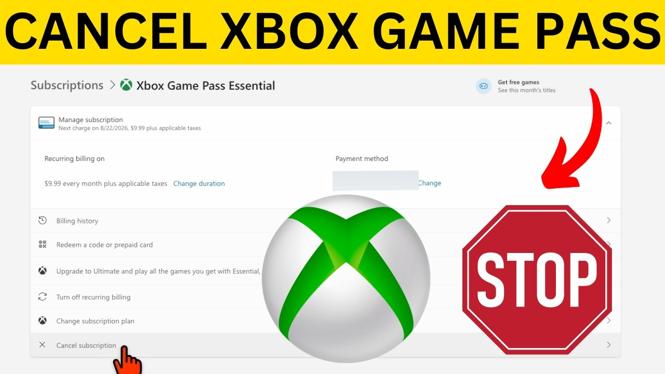
You can cancel Xbox Game Pass from a web browser on your phone or computer. You need to sign in to the Microsoft account connected to your Xbox subscription, then cancel it from the account’s subscription settings.
After you cancel, Microsoft shows the last date you can continue using Xbox Game Pass. This stops the subscription from renewing for another billing period, while allowing you to use the membership until that listed date.
Video Tutorial
Cancel Xbox Game Pass in a browser
This method works in a browser, so you can use a phone, tablet, or computer. Make sure you know which Microsoft account you use on your Xbox before starting. If you sign in with a different account, your Game Pass subscription will not appear in the list.
- Open a browser and go to Microsoft.com.
- Select Sign in in the top-right corner.
- Sign in with the Microsoft account you use for Xbox and Xbox Game Pass.
- After signing in, select the account circle in the top-right corner. It may show your initials or profile image.
- Select View account.
- In the left-side menu, select Subscriptions.
- Find your Xbox Game Pass subscription in the list.
- Select Manage next to Xbox Game Pass.
- Find and select Cancel subscription.
- On the cancellation screen, scroll all the way down and select Cancel subscription again to confirm.
What happens after you cancel
Once the cancellation is confirmed, Microsoft displays the final date you can use Xbox Game Pass. You keep access to the benefits included with your current membership until that date.
Your subscription will not continue into a new billing period after the cancellation takes effect. This is useful if you want to prevent another Game Pass charge but still have time left in the plan you already paid for.
The same account area is where you manage an Xbox Game Pass Core, Standard, or Ultimate membership. Check the subscription name carefully before selecting Manage, especially if your Microsoft account has more than one active service listed.
If you do not see Xbox Game Pass
First, confirm that you signed in with the correct Microsoft account. Many people have more than one Microsoft account, such as a personal account and an older account used when they first set up their Xbox.
Select your account circle again and verify the account you are currently using. Then return to View account and open Subscriptions. If Game Pass still is not listed, do not cancel a different subscription by mistake. The membership may be connected to another Microsoft account used on the console.
Also check that you selected Manage next to the Xbox Game Pass entry itself. The account page can list other Microsoft subscriptions, and each one has its own management options.
Confirm the final access date
The final confirmation screen is important. After you select Cancel subscription, look for the date Microsoft provides. That date tells you how long Xbox Game Pass remains active on the account.
You can use this date to plan around your current membership. For example, you may want to finish games or use other Game Pass benefits before access ends. Cancellation prevents the next renewal, but it does not necessarily remove your Game Pass access immediately.
If you later need to review the membership again, return to your Microsoft account and open Subscriptions. That is the account section used to view and manage the Xbox Game Pass subscription associated with your Microsoft account.
Quick checklist
- Use a browser on your phone or computer.
- Sign in with the Microsoft account used for Xbox.
- Open the account circle and select View account.
- Select Subscriptions from the left menu.
- Select Manage beside Xbox Game Pass.
- Select Cancel subscription, then scroll down and confirm it.
- Note the last date you can use Xbox Game Pass.
More Xbox Series X Tips & Tutorials:
 Subscribe Now! 🙂

Discover more from Gauging Gadgets
Subscribe to get the latest posts sent to your email.