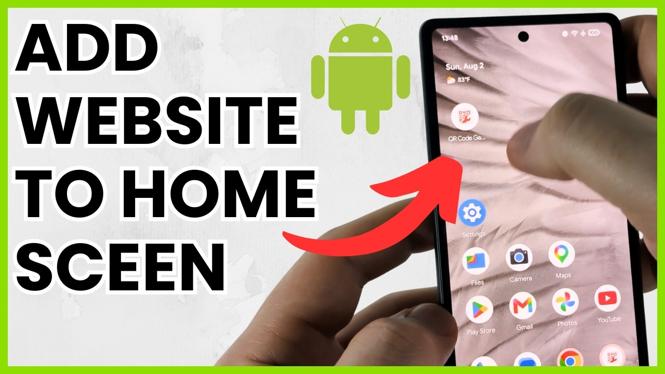
You can add a website to your Android home screen from Google Chrome. Chrome creates an item in your app list first. You can then place that item on the home screen like any other app icon.
This is useful for a site you open often. Instead of opening Chrome and searching for the page again, you can tap its icon from your home screen.
Video Tutorial
Add a website shortcut with Chrome
Use Chrome for these steps. Start by opening the exact webpage you want to save, not just the website’s main page. The shortcut opens the page that is currently loaded in Chrome.
- Open the Chrome browser on your Android phone or tablet.
- Navigate to the website or webpage you want to add.
- Tap the three dots in the top-right corner of Chrome.
- Scroll down and select Install and create shortcut.
- Review the shortcut details. You can change its name, and Chrome shows a preview of the icon and web address.
- Tap Install.
Chrome may use the word Install rather than only saying create shortcut. This does not mean you are downloading a separate app or changing files on your phone. The item still opens the website through its shortcut.
Put the website on your home screen
After you select Install, the website shortcut appears in your Android app list. From there, add it to the home screen.
- Return to your Android home screen.
- Swipe up to open the full list of apps on your device.
- Scroll through the list until you find the new website shortcut.
- Press and hold the shortcut.
- Select Add to home screen.
The website icon is now on your home screen. Press and hold it if you want to move it, then drag and drop it to a different spot. Tap the icon anytime you want to open that saved website.
What the shortcut does
A website shortcut gives you one-tap access to a page you use regularly. It can be handy for a news site, a work portal, a school page, a store, or any other webpage you do not want to search for each time.
The icon may look similar to an app in your app list and on the home screen. When you open it, it loads the saved website. If you created the shortcut while a specific webpage was open, it should take you back to that webpage.
If you need another page from the same site, repeat the process while that other page is open in Chrome. You can create separate home screen shortcuts for different websites or pages.
Remove a website from the home screen
Removing the icon from the home screen is different from uninstalling the website shortcut. Use the option that matches what you want to remove.
To remove only the home screen icon, press and hold the icon on your home screen and select Remove. This takes it off the home screen.
To remove the shortcut from your device’s app list as well, swipe up from the home screen to view all apps. Find the website shortcut, press and hold it, then drag it to the top of the screen and choose Uninstall. Confirm that you want to uninstall it when Android asks.
You can add the website again later by opening it in Chrome and using Install and create shortcut again.
More Android Tips & Tutorials:
 Subscribe Now! 🙂

Discover more from Gauging Gadgets
Subscribe to get the latest posts sent to your email.