Make a 2×2 picture online from your browser
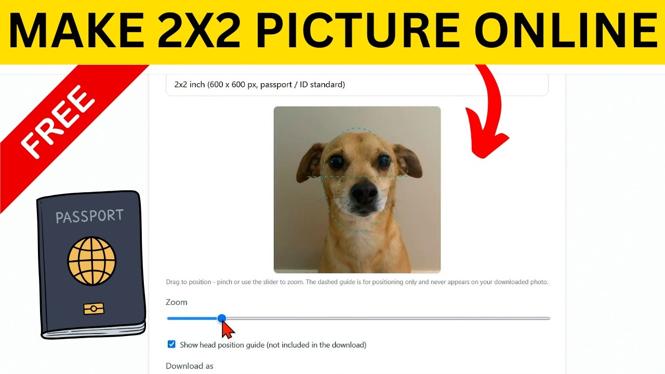
You can turn an existing photo into a 2×2 picture for free with ConvertResize. The tool lets you choose the image, position it inside a square crop, zoom in when needed, and save the finished result. You do not need to download software for this process.
This is useful when you need an ID-style photo for an application, document, visa, or similar form. Before using the image, check the photo rules from the organization requesting it. They may have specific requirements for background, head position, file type, or image quality.
Video Tutorial
Create a 2×2 photo with ConvertResize
ConvertResize works in the browser on your phone or computer. According to the tool’s creator, the site processes photos directly in your browser on your device instead of requiring you to upload them to a server.
- Open ConvertResize.com in your browser.
- Use the search bar and type two.
- Select Two by Two Picture Maker from the search results.
- Select the upload dropdown area and choose the picture you want to convert into a 2×2 photo.
- Leave the size at its default setting for a 2 by 2 image. The tool also provides a 1 by 1 option if that is the size you need instead.
- Move the photo up, down, left, or right until the subject sits correctly within the crop area.
- Use the zoom control if you need to make the face or subject larger. The on-screen guides help you judge the placement.
- Scroll down after you finish adjusting the image.
- Choose either Single Photo or Printable Sheet. The printable sheet includes six copies of the 2×2 photo.
- Select Download, then save the completed image to your device.
Position the photo before downloading
The crop and positioning step is the part to spend time on. Choosing a square size alone does not guarantee that the photo is framed correctly. After you select your image, use the movement controls to place the subject where you need it.
If the face looks too small inside the square, zoom in. If the top of the head or another important part of the image is too close to an edge, zoom out slightly and reposition the picture. Use the visible guides as a reference while you make these adjustments.
For an ID-style photo, start with a clear original image. A blurry, dark, or heavily filtered image will still look blurry, dark, or filtered after it is resized. The converter changes the crop and output size, but it does not replace the photo requirements set by the agency, employer, or application system receiving your image.
Choose between a single photo and a printable sheet
Pick Single Photo when an online form asks you to upload one 2×2 image file. This gives you one finished square photo to save and use where needed.
Pick Printable Sheet when you need physical copies. This option creates a sheet containing six copies of the same 2×2 picture. It can be useful when a paper application asks for multiple photos, or when you want several matching copies available.
If you are not sure which option applies, check how you will submit the photo. Online submissions commonly need one image file, while printed paperwork may require photo copies. Save the downloaded file somewhere you can find again before closing the browser.
Check the finished 2×2 image
Open the downloaded file after saving it. Confirm that it is square, that the subject is positioned as intended, and that the image looks clear. If the crop needs work, return to the Two by Two Picture Maker, select the original photo again, and adjust its position or zoom before downloading another copy.
Using the original image each time gives you the best starting point. Once the framing looks right, you can keep the single image for digital forms or use the six-copy printable sheet for paper submissions.
More ConvertResize Tips & Tutorials:
 Subscribe Now! 🙂

Discover more from Gauging Gadgets
Subscribe to get the latest posts sent to your email.