Disconnect the laptop before you reset it
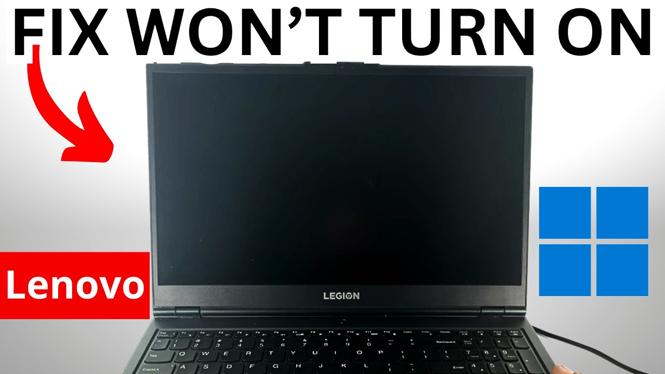
If your Lenovo laptop has a black screen, will not boot, or does not appear to charge, start by removing every cable connected to it. This clears out connected accessories before you force the laptop to restart.
Unplug the charging cable first. Also remove any USB cables, HDMI cables, and other devices attached to the laptop. Even if an accessory seems unrelated, disconnect it for this test. You want the Lenovo laptop completely unplugged before moving on.
The main fix shown here is a hard reset using the laptop’s power button. This does not affect the files stored on your computer. It simply forces the laptop to restart, which can help when it is stuck with a black screen or does not respond to a normal press of the power button.
Video Tutorial
Perform a hard reset on your Lenovo laptop
Look for the physical power button on your Lenovo laptop. Its position can vary by model, so check around the keyboard area or edges of the device if you do not immediately see it. You are looking for the button used to normally turn the laptop on and off.
- Disconnect the charger, HDMI cable, USB devices, and any other cables from the Lenovo laptop.
- Find the laptop’s Power button.
- Press and hold the Power button for 10 to 15 seconds.
- Keep holding the button for the full time, even if the screen flashes or the laptop appears to turn on during the process.
- Release the Power button after 15 seconds.
This longer press is different from a normal startup press. The goal is to force a restart after the laptop has been fully disconnected from power and accessories. Do not worry if nothing immediately appears on the screen while you hold the button down.
Check the charger connection before powering it back on
After the hard reset, reconnect the charger to the laptop. Check each part of the connection as you do it. Make sure the charging plug is properly seated in the Lenovo laptop.
Some Lenovo chargers have a power brick, which is the box along the charging cable. If yours has one, make sure the connections at that box are properly connected too. A loose connection there can prevent the laptop from receiving power even when the cable looks connected at the laptop.
Only reconnect the charger at this stage. Leave HDMI, USB, and other accessories disconnected until the laptop has started successfully. This keeps the restart test simple and lets you focus on whether the laptop boots with its charger connected.
Turn the Lenovo laptop back on
- With the charger connected, locate the Power button again.
- Press and hold it for two to three seconds.
- Release the button and wait for the laptop to begin booting.
This time, use a short press. The 10 to 15 second hold was for the hard reset. The two to three second hold is just to turn the laptop back on normally.
Your Lenovo laptop may take a little longer than usual to start after the hard reset. Give it time to boot before assuming the process did not work. If the display comes on and the computer reaches the sign-in screen, you can log in and use it as normal.
What to check if the screen was black
A black screen can make it hard to tell if the laptop is responding. During the hard reset, continue holding the Power button even if you see a flash on the display. Then reconnect the charger and use the short power-button press to start it again.
Also check the charger connection one more time before repeating the startup attempt. Confirm that the cable is connected to the laptop and that the power brick connections are secure, if your charger uses a brick. The hard reset works best when the laptop was fully unplugged first and is then restarted with the charger connected.
Keep the first restart simple
Do not reconnect your USB devices or HDMI cable until after the Lenovo laptop boots. Once it turns on, logs in, and is usable again, you can reconnect the accessories you normally use.
If the laptop still will not turn on or charge after completing these steps, repeat the sequence carefully: remove all cables, hold the power button for 10 to 15 seconds, reconnect the charger, and use a two to three second press to start it. Make sure you use the long press only for the reset and the short press for the normal startup.
More Windows 11 Tips & Tutorials:
 Subscribe Now! 🙂

Discover more from Gauging Gadgets
Subscribe to get the latest posts sent to your email.