Scan the QR code from a screenshot
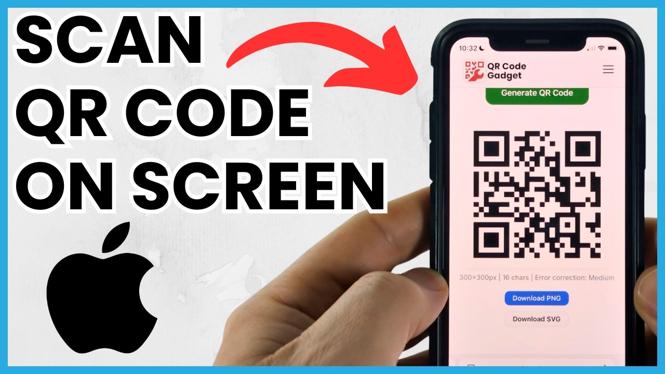
You cannot point your iPhone camera at a QR code that is already on the same iPhone screen. The quickest option is to take a screenshot, then use the QR recognition control in the screenshot editor. This works for codes in an email, message, website, or other app.
When iPhone recognizes the code, you can open its link directly or copy the information stored in it. If the built-in option does not appear, save the screenshot and decode it with QRCodeGadget instead.
Video Tutorial
Use the screenshot editor
Start with the full QR code visible on your screen. Avoid cutting off any of the square border or the small pattern squares in the corners. A clear, uncropped image gives iPhone the best chance of reading it.
- Open the email, webpage, message, or image that contains the QR code.
- Press the power button and Volume Up button at the same time to take a screenshot.
- Tap the screenshot preview that appears in the lower-left corner of the screen.
- In the screenshot editor, tap the small box-shaped control with lines in it.
- Select the QR code in the screenshot.
- Choose to open the QR code result, or copy its contents if you need the text or link elsewhere.
For a web link, opening the result takes you to the website stored in the QR code. A QR code can also contain plain text or other information. In that case, copying the contents lets you paste the data into a browser, note, message, or another app.
Save the screenshot if iPhone does not detect the code
Sometimes the screenshot editor does not show an option to select the QR code. This can happen when the image is small, blurry, partly covered, or displayed against a busy background. You can still use the same screenshot with a QR code decoder.
- Take a screenshot while the entire QR code is visible.
- Tap the screenshot preview.
- Select Done.
- Choose Save to Photos.
You now have a copy of the QR code in your photo library and can upload or select that image in a decoder. Saving it first also helps if the original code was only visible briefly in a message or on a webpage.
Decode the saved image with QRCodeGadget
QRCodeGadget is the second method shown in the video. Its QR code decoders and scanners work directly on your phone, so you do not need to upload the screenshot or QR code to a server.
- Open QRCodeGadget on your iPhone.
- Select QR Code Decoder.
- Choose Choose Image.
- Select Photo Library.
- Pick the screenshot that contains the QR code.
- Select Done.
After the image is decoded, QRCodeGadget shows a successful decode message. Scroll down to see the QR code contents. You can copy the result to your clipboard, then paste it into a new browser tab or any other app where you want to use the data.
Get a better result from the screenshot
If the first scan fails, take another screenshot with a few simple adjustments. Make the QR code larger on screen before capturing it. If it is on a webpage, you can zoom in so the individual squares are clearer. Keep the complete code visible, including the three larger squares in its corners.
Also make sure nothing overlaps the code. Text selection handles, pop-ups, share panels, and notification banners can obscure part of the pattern. Return to the original screen, dismiss anything covering the image, and take a fresh screenshot.
Use the built-in screenshot method first because it is the fastest way to scan a QR code on your iPhone screen. If iPhone does not recognize it there, save the image to Photos and use QRCodeGadget to read and copy the QR code data.
More iPhone Tips & Tutorials:
 Subscribe Now! 🙂

Discover more from Gauging Gadgets
Subscribe to get the latest posts sent to your email.