How to Remove For You & Quick Access from Roku Home Screen
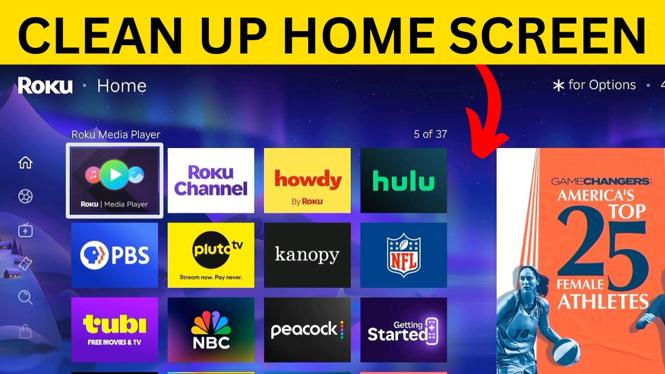
Roku devices are popular for their ease of use and extensive library of channels. However, the home screen can sometimes feel cluttered with sections like “For You” and “Quick Access.” If you’re looking for a way to streamline your Roku experience, this tutorial will guide you through the simple steps to remove these sections, allowing you to customize your home screen to your preferences. Whether you want a cleaner interface or simply want to highlight the channels you frequently use, this guide will help you achieve that.
Video Tutorial
Why You Might Be Looking for This Tutorial
Many Roku users appreciate its convenient interface but often find the “For You” and “Quick Access” sections less useful. You might be looking for this tutorial for several reasons:
- Personalization: You want to tailor your home screen to display only the channels you use regularly, making navigation quicker and more intuitive.
- Reduce Clutter: Removing these sections can help you eliminate distractions and keep your Roku home screen clean.
- Increase Efficiency: Focusing on the apps that matter most to you can enhance your viewing experience and save time spent scrolling through suggestions that don’t interest you.
Steps to Remove For You & Quick Access from Roku Home Screen
Follow these steps to successfully remove the “For You” and “Quick Access” sections from your Roku home screen:
- Power on Your Roku Device: Make sure your Roku player is turned on and connected to your TV.
- Navigate to the Home Screen: Press the Home button on your Roku remote to access the home screen.
- Highlight the ‘Settings’ Option: Use the arrows on your remote to navigate to the ‘Settings’ option on the left pane of the screen.
- Access ‘Home Screen’ Settings: Scroll down and select ‘Home screen’ settings from the Settings menu.
- Disable ‘For You’ and ‘Quick Access’: Look for the options labeled ‘For You’ and ‘Quick Access’ in the menu and set both options to ‘Off’.
- Return to Home Screen: Press the Home button again to return to your home screen and see the changes reflect.
After completing these steps, you will notice a more streamlined layout on your Roku home screen, focusing solely on the channels and apps you frequently use. Enjoy your customized Roku experience!
More Roku Tips & Tutorials:
 Subscribe Now! 🙂

Discover more from Gauging Gadgets
Subscribe to get the latest posts sent to your email.