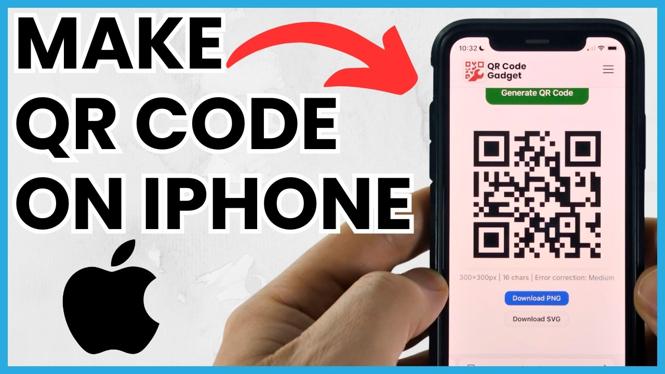
You can make a QR code on your iPhone with QRCodeGadget. It creates codes for a website link, plain text, an email, an SMS message, Wi-Fi details, contact information, a phone number, and crypto information. You enter the information, generate the code, then download the image to use wherever you need it.
This method works in your device browser and is free. The same generator also works on Android phones and computers, but the steps below focus on making your code from an iPhone.
Video Tutorial
Make a QR code on your iPhone
- Open QRCodeGadget.com on your iPhone.
- Choose Generator from the top menu. You can also select the QR Code Generator option on the site.
- Pick the template that matches what you want the QR code to do. Choose URL for a website or link.
- Enter the destination in the box. For example, paste the web address for a page, video, channel, product, or social profile.
- Select Generate to create your QR code.
Your QR code is now ready. Anyone who scans it will be sent to the URL you entered. If you only need a standard black-and-white code, you can generate it and save it at this point.
Choose the right QR code template
The generator includes pre-built templates, so you do not have to format every type of information yourself. Selecting the correct one helps the QR code open the right action when someone scans it.
- URL: Sends the scanner to a website or other web link.
- Text: Displays the text you enter.
- Email: Sets up an email QR code.
- SMS: Sets up a text message QR code.
- Wi-Fi: Shares a Wi-Fi network through a QR code.
- Contact: Creates a code for contact details.
- Phone: Creates a code for a phone number.
- Crypto: Creates a code for crypto information.
For most uses, URL is the option you need. Use it for any page you can open with a web address. In the video example, a YouTube subscription link is entered into the URL field.
Customize the QR code before generating it
QRCodeGadget includes advanced options for changing the appearance of your code. These are useful when you want the QR code to match a flyer, video, sticker, business card, or other design.
- Choose a different Size if you need a larger or smaller QR code image.
- Change the Foreground color to alter the color of the QR code itself. The video uses green as an example.
- Change the Background color if you want something other than the default background.
- Select Browse to add a logo. Choose the logo image you want to use.
- Review the logo preview, then select Generate again.
When you add a logo, it appears in the middle of the generated QR code. You can change the foreground and background colors as well, then generate a version that better fits your design.
If you are making a custom code, keep it easy to scan. A code with clear contrast between its foreground and background is easier for people to use. Generate the final version after you finish changing the available options.
Download and use your QR code image
After generating the code, download it as a PNG image. On a computer, the video shows that you can right-click the QR code and select Save Image As. The generated image can be saved and opened on any device.
Once you have the image on your iPhone, you can add it to places where people can scan it. For example, use it in a video, on a sticker, or anywhere you want to send someone to your link or information. The QR code continues to point to the exact URL or details you entered when you generated it.
Check the destination before sharing
Before placing the QR code on something public, make sure the information you entered is correct. For a URL code, verify that the full link is the destination you want people to reach. If you change the link or create a new design, generate and save the updated QR code image.
That is all you need to make a QR code on iPhone. Select the template, enter the information, generate the code, optionally customize its colors or logo, and download the PNG image.
More iPhone Tips & Tutorials:
 Subscribe Now! 🙂

Discover more from Gauging Gadgets
Subscribe to get the latest posts sent to your email.