Make the ringtone from a song file on your iPhone
You can turn an MP3 or another music file saved on your iPhone into a custom ringtone with GarageBand. You do not need a computer or another ringtone app. The key requirement is having the audio file available in the Files app before you start.
GarageBand is free to get from the App Store if it is not already on your iPhone. You can use a downloaded song, a sound effect, or audio you have saved as a file. For example, Pixabay has music files you can download. Choose audio you have permission to use.
Keep the ringtone length in mind while editing. An iPhone ringtone can be up to 30 seconds long. GarageBand can export a longer project, but iPhone will use the first 30 seconds when you continue with the export.
Video Tutorial
Import a song into GarageBand
- Open GarageBand on your iPhone.
- Select the plus icon in the top-right corner to create a new song.
- Choose Audio Recorder. You do not need to record anything. This option gives you a project where you can import your existing audio file.
- Select the small box with three horizontal lines to open the timeline view.
- Select the loop icon.
- Open the Files tab.
- If your song is not listed, select Browse items from the Files app.
- Browse to the MP3 or other music file you saved on your iPhone, then select it. Give GarageBand a moment to load the file into the list.
- Long press the audio file, drag it into the timeline, and release it.
Your song is now an audio region in the GarageBand timeline. You can play the project and decide which part works best as your ringtone.
Trim the ringtone to the part you want
Select the audio region in the timeline. You will see a small line or handle at the beginning and end of the song. Drag these handles to remove audio from the front or end. This lets you isolate the chorus, intro, sound effect, or any other section you want to hear when someone calls.
After trimming, drag the finished audio region all the way to the beginning of the timeline. This matters because the ringtone starts from the beginning of your GarageBand project. Make sure the section you want starts right away.
Try to keep the selected portion at 30 seconds or less. A shorter ringtone is often easier to recognize, especially if you are using a loud part of a song. If your project is longer than 30 seconds, you can still export it, but GarageBand will prompt you to continue and only the first 30 seconds will be used.
Export the GarageBand project as an iPhone ringtone
- When your audio is trimmed and positioned, select the drop arrow in the top-left corner.
- Select My Songs to save the project and return to your GarageBand songs list.
- Find the project you just created.
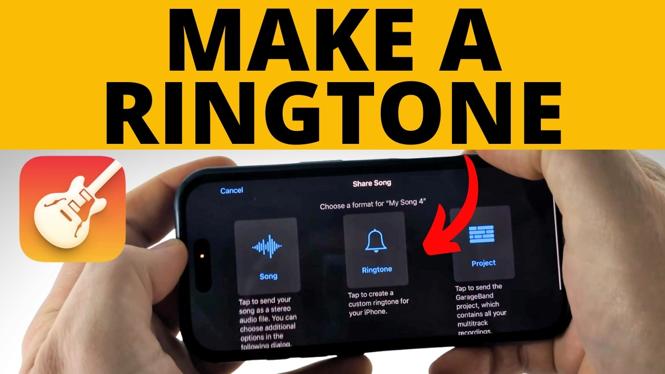
- Long press the project, then select Share.
- Select Ringtone.
- Enter a name for the ringtone. Use a clear name so you can find it later in your iPhone sound settings.
- Select Export.
- If GarageBand says the ringtone is over 30 seconds, select Continue. The first 30 seconds will be used.
After the export finishes, select Use Sound As. You can set the new audio as your standard ringtone, use it for text messages, or assign it to a specific contact. Select the option you want at this point.
Use your custom ringtone for other iPhone alerts
You can also choose the GarageBand ringtone later for calls and other notification sounds. Open Settings, scroll down, and select Sounds & Haptics. Choose the type of alert you want to change, such as your ringtone or a notification sound.
Scroll to the bottom of that sound list. The ringtones you created in GarageBand appear there by the name you gave them during export. Select one to make it the sound for that alert.
If you made several versions of the same song, naming them by section can help. For example, use names that identify the intro, chorus, or a specific clip. You can repeat these steps any time you want to create another custom iPhone ringtone from a saved audio file.
More iPhone Tips & Tutorials:
 Subscribe Now! 🙂

Discover more from Gauging Gadgets
Subscribe to get the latest posts sent to your email.