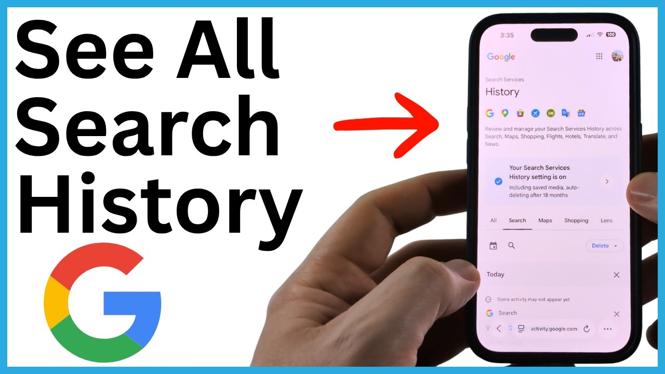
You can see Google search history from your phone by opening Google in a browser and checking the Search history page. This works on an iPhone, Android phone, and Samsung Galaxy phone as long as you sign in to the Google account that made the searches.
The page lists your previous Google searches and lets you search the list, narrow it to specific dates, or remove entries you no longer want saved.
Video Tutorial
See your Google search history on your phone
Start in a web browser on your phone. You can use the browser you normally use to visit websites. The important part is going to Google and signing in with the correct account.
- Open a browser on your iPhone, Android phone, or Samsung phone.
- Go to google.com.
- Sign in to your Google account if you are not already signed in.
- Select your profile icon in the top-right corner of the Google page.
- Select Search history.
Google opens your history page. Make sure History is selected. You can then scroll down to browse the searches associated with that Google account.
If your expected searches are missing, first check the profile icon. You may be signed in to a different Google account than the one you used when you made those searches. Switch to the right account, then open Search history again.
Search and filter your past Google searches
Your history can be much easier to use than trying to remember a website address. Scroll through the entries to see searches in order, or use the available search option to look for a word or phrase from an earlier search.
You can also select specific dates. This is useful when you remember roughly when you searched for something, such as a recipe, product, local business, or troubleshooting guide. Instead of scrolling through a long list, limit the history to the day or date range you need.
Each entry represents activity saved to the Google account you are viewing. That means the page can help you locate searches made from another phone or device too, provided you used the same account and the activity was saved there.
Delete one Google search from history
If you only need to remove a particular search, you do not have to clear everything. Google places an X next to individual history items.
- Open Search history from your Google profile icon.
- Find the search item you want to remove.
- Select the X next to that item.
This removes that individual item from the displayed Google search history. It is a good choice when you want to keep most of your activity available but remove a single search.
Delete a full day of Google search history
You can also remove a whole day at once. On the history page, find the date section containing the activity you want to delete. Select the X next to that day to delete the searches grouped under it.
Use this option carefully. Deleting a day removes more than one search, so quickly review the date section first if you still want to keep some of its entries.
Delete all Google search history
If you want to clear the entire history shown for your account, use the delete controls on the Google history page.
- Open the Search history page.
- Select Delete.
- Select Delete all.
- Confirm that you want to delete all of your Google search history.
After you confirm, Google removes the entire search history covered by that option. This cannot help you recover a site later, so make sure you have saved any useful pages before deleting everything.
What you need to remember
Google search history is tied to the Google account you use, not just the phone in your hand. If you use multiple accounts for work, school, or personal searches, each account can have its own history. Check the account shown by the profile icon before you search for or delete activity.
For quick access, return to google.com, select your profile icon, and choose Search history. From there, you can review previous searches, search through the list, select dates, or delete individual entries, days, or all saved search history.
More Google Tips & Tutorials:
 Subscribe Now! 🙂

Discover more from Gauging Gadgets
Subscribe to get the latest posts sent to your email.