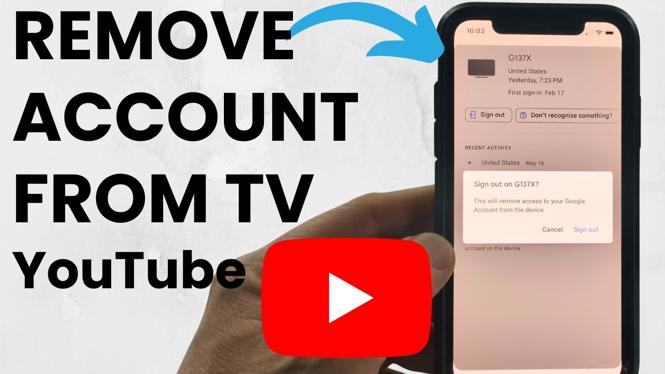
How to Remove Your YouTube Account From TV
If you’re concerned about privacy or simply want to manage your YouTube accounts better, knowing how to remove your YouTube account from your TV is essential. This process can help you secure your personal information and ensure that your viewing history isn’t accessible to others. Whether you’re preparing to sell your Smart TV, giving it away, or just decluttering your streaming services, this guide will walk you through the necessary steps to sign out of YouTube and unlink your Google account from a variety of devices.
Video Tutorial
Why You Might Be Looking for This Tutorial
There are several reasons why you may want to remove your YouTube account from your TV. Perhaps you’ve recently purchased a new Smart TV and want to ensure that your old account is no longer linked. You may be sharing the TV with others and wish to maintain your privacy. Alternatively, if you’ve experienced issues with multiple accounts or simply want to start fresh, this tutorial will provide the clarity you need. No technical expertise is required, making this process accessible for everyone.
Steps to Remove Your YouTube Account From TV
Step 1: Open YouTube on Your Smart TV
Begin by turning on your Smart TV and navigating to the YouTube app. This can typically be found in your app menu or on the home screen.
Step 2: Access the Settings Menu
Once in the YouTube app, look for the profile icon, usually located in the upper right corner of the screen. Click on this icon to access the settings menu.
Step 3: Sign Out of Your Account
In the settings menu, find the option that says “Sign Out” or “Switch Account.” Selecting this will prompt you to confirm that you wish to sign out of the current account. Confirm the action.
Step 4: Unlink Your Account
After signing out, you may also want to unlink your account entirely. Go back to the settings and look for an option like “Unlink Device” or “Account Information.” Follow the prompts to ensure your Google account is fully unlinked.
Step 5: Remove the Google Account (Optional)
If you seek additional security, consider removing your Google account from the TV. This option can usually be found in the device’s general settings under “Accounts” or “Users.” Navigate to the Google account section and select the option to remove it.
Conclusion
By following these steps, you can easily remove your YouTube account from your Smart TV, enhancing your privacy and ensuring that your accounts are managed securely. No matter which device you are using—be it Samsung, LG, Sony, or Roku—these steps will assist you in decluttering your streaming experience. If you have any questions or need further assistance, feel free to refer back to the video tutorial above for a visual guide.
More YouTube Tips & Tutorials:
 Subscribe Now! 🙂

Discover more from Gauging Gadgets
Subscribe to get the latest posts sent to your email.