Stop an Auto Dubbed Video From Playing
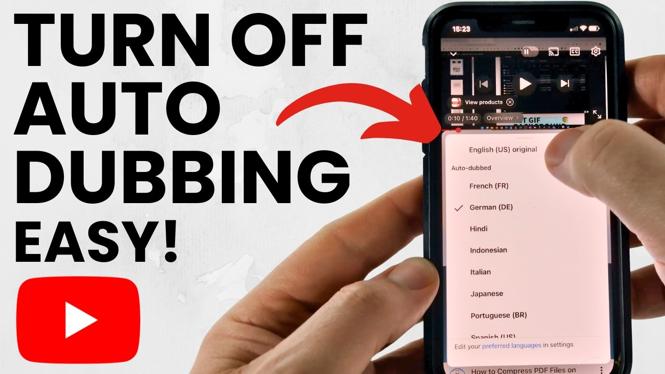
YouTube can play an automatically dubbed audio track when a video has translated audio available. If you want to hear the creator’s original voice instead, change the audio track on that video’s player. The video demonstration uses YouTube in a desktop browser, including a PC, MacBook, or Chromebook.
This is useful when the translated voice does not match the creator, when you understand the video’s original language, or when you simply prefer the original recording. You can make a one-time change on a video, then adjust your preferred languages so YouTube chooses original audio more often.
Video Tutorial
Change the Audio Track on One YouTube Video
Use this method when a video is already playing with an auto dubbed voice. It changes the audio for that video without changing your wider YouTube language preferences.
- Open the YouTube video that is playing with dubbed audio.
- Hover your pointer over the video player to show the playback controls.
- Select the gear icon.
- Select Audio track.
- Choose Original.
The video should now play its original audio rather than the automatic translated dub. If you do not want the original language, you can select another available language from the same Audio track menu.
Not every video offers multiple tracks. If you do not see Audio track, that video may only have one audio option available to play.
Set Preferred Languages for Future Videos
Changing the track is quick, but you may have to repeat it on another video. YouTube’s preferred language setting helps prevent that. When a video’s original audio language is included in your preferred languages, YouTube will play the original audio for that language.
- Select your YouTube profile icon in the top-right corner.
- Select Settings.
- In the left sidebar, select Playback and performance.
- Find the Preferred languages section.
- Select Add or edit.
- Check the language or languages you want YouTube to treat as preferred.
- Select Confirm to save the selection.
For example, if the creators you watch normally speak English, add English to your preferred languages. If you regularly watch creators in more than one original language, select each language you understand. YouTube can then use those preferences when audio tracks are available.
What the Preferred Language Setting Changes
This setting does not remove translated audio tracks from YouTube videos. Instead, it tells YouTube which audio languages you prefer. When the original language of a video is on your preferred list, YouTube will choose that original audio rather than an auto dubbed version.
You can still change an individual video’s audio later through the player gear icon. That gives you control when you want to listen in a different available language for a specific video.
Fixes if You Still Hear a Dub
First, open the player’s gear menu and check Audio track. Select Original if it appears. This is the fastest way to correct the current video.
If the issue happens across multiple videos, return to Settings, then Playback and performance, and review Preferred languages. Make sure the language spoken in the original video is checked, then select Confirm.
Also remember that YouTube can only use tracks supplied for that particular video. A video with no original track option or no additional tracks cannot be switched through the audio track menu. In that case, the available audio choices are determined by that upload.
Use Original Audio When It Is Available
For a quick fix, select Original from the video’s Audio track menu. For a longer-term preference, add the original languages you understand under Preferred languages. Together, these settings let you hear more videos in the creator’s intended voice while keeping other available audio languages accessible when you need them.
More YouTube Tips & Tutorials:
 Subscribe Now! 🙂

Discover more from Gauging Gadgets
Subscribe to get the latest posts sent to your email.