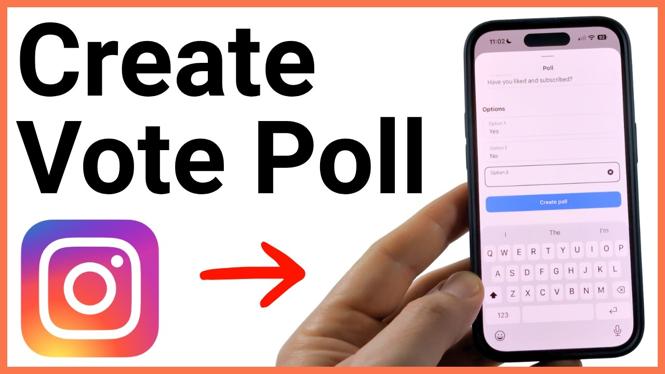
Instagram polls work in group chats
You can create a poll on Instagram inside a group chat to get a quick vote from everyone in that conversation. The poll tool is not available in a direct message with only one other person, so you need to use an existing group chat before you start.
Once you send the poll, group members can choose an option directly in the chat. You can also vote on your own poll, then open it later to check the results and see who selected each option.
Video Tutorial
Create a poll in an Instagram group chat
Start in the Instagram app and open the group where you want people to vote. Have your question and possible answers ready first. This makes it easier to set up the poll without leaving the chat.
- Open the Instagram app.
- Select the messages icon in the bottom menu.
- Choose the group chat where you want to post the poll.
- Select the plus symbol in the bottom-right corner of the chat.
- Select Poll.
- Enter your question in the question field.
- Enter your first voting option.
- Enter your second voting option.
- Add more options if you need them.
- Select Create poll when the question and options are ready.
The poll appears as a message in the group chat. Each person in the group can select the answer they want. You do not need to send a separate message asking people how to vote because the poll contains the choices.
Add the right number of voting options
Instagram gives you another option field after you enter an answer. For example, entering the first option shows a place for a second option. After you enter the second option, you can add a third if your question needs more choices.
You do not have to fill every available option field. Empty fields are not added to the poll. If your question only needs two answers, such as Yes and No, enter those two choices and leave any extra fields blank.
Keep each option short so everyone in the group can understand the choices quickly. For example, you could ask, “What time should we meet?” and add options such as “6 PM,” “7 PM,” and “8 PM.” Make sure the options match the question and do not overlap if you want a clear result.
Vote on the poll and check results
After you select Create poll, the poll is sent to the group chat. You can vote on a poll you created, just like any other member of the group. Select the option you want to support in the poll message.
To see the results after people begin voting, select the poll in the chat. Instagram shows the voting details, including an icon next to the people who voted for each option. This lets you check both the overall response and the choice made by each person.
- Open the group chat containing the poll.
- Select the poll message.
- Review the results shown for each option.
- Check the icons next to the voters to see who chose each answer.
The results update as more people vote. Open the same poll again later if you want to see the latest group response before making a decision.
Why you may not see the Poll option
The main requirement shown here is that the conversation must be a group chat. If you open a message thread with just one person, you cannot create this type of poll there. Go back to your messages, select a group conversation, then select the plus symbol and look for Poll.
Also make sure you are using the plus symbol inside the selected group chat. The poll option is part of the attachments and tools available from that button, not something you type into the normal message field.
Use polls for quick group decisions
An Instagram group chat poll is useful when the group needs to choose one option without sorting through many separate replies. You can use one to pick a meeting time, decide where to eat, choose a plan, or collect preferences from friends, family, or a team chat.
Write one clear question, provide the possible answers, and select Create poll. When votes start coming in, select the poll to see the result and who voted for each option.
More Instagram Tips & Tutorials:
 Subscribe Now! 🙂

Discover more from Gauging Gadgets
Subscribe to get the latest posts sent to your email.