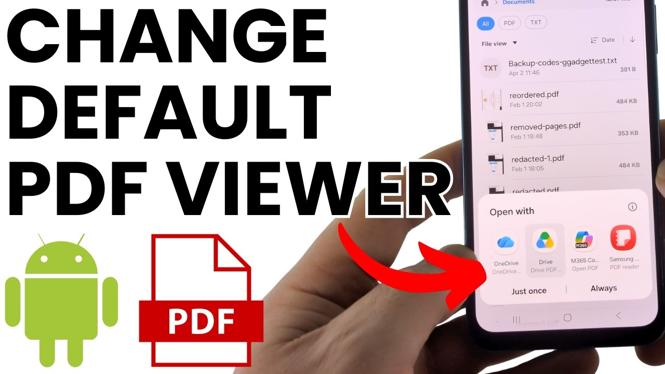
Your Android phone can open PDFs in the wrong app if a viewer was previously set as the default. You can switch it from the file itself in the Files or My Files app. Select the PDF viewer you want, then choose Always so future PDFs use that app automatically.
Video Tutorial
Change the default PDF viewer
On Samsung Galaxy phones, the built-in file manager is called My Files. On other Android phones, it is typically called Files. The names and placement of some buttons can vary slightly, but the option you need is Open with.
Before you start, make sure the PDF viewer you want to use is already installed on your phone. It needs to appear in the list of available apps when you choose how to open a PDF.
- Open My Files on a Samsung phone, or open Files on another Android phone.
- Go to the folder or location where your PDF is saved. For example, the video uses the Docs folder.
- Find a PDF file that you can use for the change.
- Press and hold the PDF file. This opens a menu for that file.
- Look for the three-dot More menu. Depending on your phone, this may appear at the top or bottom of the screen.
- Select Open with.
- Choose the PDF viewer app you want to use. The current default PDF viewer may appear first in the list.
- Select Always to make that app your default PDF viewer.
For example, the video selects PDF Reader and then taps Always. From that point, PDF files open in PDF Reader instead of asking which app to use each time.
Check that the new default worked
You do not need to change every PDF file individually. The setting applies when you open other PDFs with the same file-opening choice.
- Return to My Files or Files.
- Locate a different PDF file.
- Tap the file normally, without pressing and holding it.
- Confirm that it opens directly in the PDF app you selected.
If the file opens in your chosen app right away, the default PDF viewer has been changed successfully. You should no longer see the app selection prompt each time you open a PDF.
Choose a different PDF app later
If you decide you want another app to open PDFs, repeat the same process with any PDF file. Press and hold the file, select More, choose Open with, select a different available viewer, and choose Always.
This is useful if you installed a new PDF app and want to make it your regular viewer, or if your current viewer is not the app you prefer. The important part is choosing Always. Selecting an app without choosing Always may only affect that one time you open the file.
If you cannot find Open with
Start by making sure you are working from the file manager rather than from inside a PDF app. Open My Files or Files, find the PDF, and press and hold the file. Then check the three-dot More menu for Open with.
The menu can appear in a different part of the screen depending on the Android phone and software version. Look at both the top and bottom areas after selecting the PDF. Once you find Open with, Android shows the compatible PDF viewers available on your device.
What Always does when opening PDFs
Android uses the app selected with Always as the default handler for PDF files. That means you can tap a PDF from your file manager and it opens in the selected viewer without another choice screen.
If you only want to use an app once, do not make it the default. In that case, choose the viewer for that PDF without setting it to Always. For a regular PDF app that you use every day, selecting Always keeps the process simple and consistent.
More Android Tips & Tutorials:
 Subscribe Now! 🙂

Discover more from Gauging Gadgets
Subscribe to get the latest posts sent to your email.