Redeem your Xbox gift card code in the app
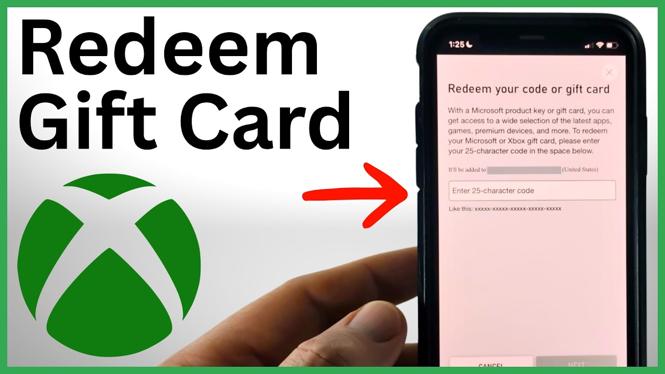
You can add an Xbox gift card to your Microsoft account balance directly from the Xbox app. You do not need to be at your console. The process uses the 25-character code printed on the back of a physical gift card or included in an email from Microsoft or Xbox.
Have the code ready before you start. If the card is physical, scratch off the protective area carefully so you can read every character. Then open the Xbox app on your iPhone, iPad, or Android phone and follow the steps below.
Video Tutorial
How to redeem an Xbox gift card on the Xbox app
- Open the Xbox app on your phone or tablet.
- Select the Home button.
- From the Home screen, select your profile icon in the top-left corner.
- Select the gear in the top-right corner to open Settings.
- Select Redeem code.
- Enter the 25-character gift card code.
- Select Next.
After you select Next, the Xbox app processes the code and redeems the gift card. The value is added to your account balance. You can then use that balance for eligible purchases through the Xbox Store, including games, add-ons, and subscriptions.
Where to get the 25-character code
The code comes from the gift card you received. For a store-bought card, it is usually on the back beneath a scratch-off section. For a digital gift card, check the email sent by Microsoft or Xbox. Copy the code exactly as shown before entering it in the app.
A 25-character code can be easy to mistype, especially when reading it from a scratched card. Take a moment to check each group of characters before selecting Next. If you copied a code from an email, make sure you copied the full code and did not include extra spaces at the beginning or end.
Make sure you use the right Xbox account
Gift card funds are redeemed to the Microsoft account currently being used in the Xbox app. Check the profile icon before you redeem the code if more than one person uses your phone or tablet. Once the code has been redeemed, the balance should appear in that account.
This matters if you share a console or buy games for different family members. Redeem the gift card from the profile that should receive the funds. Do not assume a gift card added from one profile will appear in another profile’s balance.
If the code does not work
Start by checking the code for typing mistakes. The app requires all 25 characters, so a missing character prevents redemption. If you are entering a code from a physical card, make sure the scratched area is fully visible and that no characters are still covered.
Also confirm that you selected Redeem code from the Xbox app settings and entered the code before selecting Next. If the app shows a message after you submit it, read that message closely. It can help you identify whether the code was entered incorrectly or whether there is another issue with the card.
Keep the physical card or the original gift card email until you see that the funds have been added to your account. That gives you the original code details if you need to check what was entered.
What happens after redemption
Redeeming the card adds its value to your Microsoft account balance. You can use the balance without going to your Xbox console, which is useful when you receive a gift card away from home. After the balance is available, it can be used for purchases from the Xbox Store.
If you are planning to buy a game, add-on, or subscription, redeeming the gift card first lets you have the funds ready in your account. Just remember to verify the account profile in the app before submitting the code. That one check helps ensure the balance goes to the account you intend to use.
More Xbox Series X Tips & Tutorials:
 Subscribe Now! 🙂

Discover more from Gauging Gadgets
Subscribe to get the latest posts sent to your email.