Open Samsung Keyboard First
You can find the clipboard on a Samsung phone from the Samsung Keyboard. The clipboard is not usually a separate app on your phone. Instead, it appears when the keyboard is open, letting you view items you copied and paste them into the app you are using.
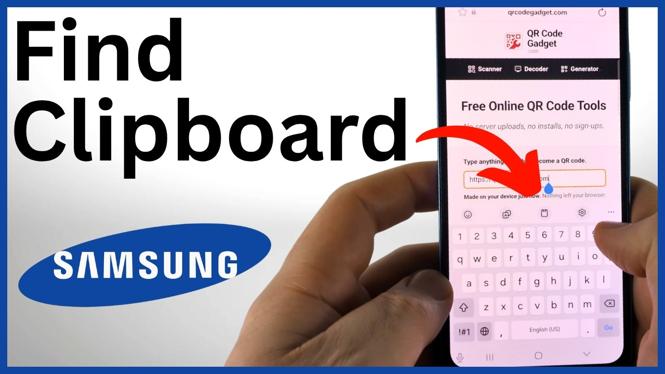
Start by opening any app where you can type. A message, note, email, or search field will work. Tap inside a text field so Samsung Keyboard appears on screen. Once the keyboard is open, you can check for the Clipboard button in the toolbar above the number row.
Video Tutorial
Turn On the Keyboard Toolbar If You Cannot See It
The Clipboard icon lives in the Samsung Keyboard toolbar. If there is no row of icons above the number row, the toolbar may be turned off. You need to enable it before you can add or use the Clipboard shortcut.
- Keep Samsung Keyboard open in a text field.
- Find the button to the left of the space bar.
- Press and hold that button.
- Select the gear icon to open the keyboard settings.
- Look for Keyboard toolbar.
- Turn on Keyboard toolbar.
- Return to the app and bring up the keyboard again.
You should now see a toolbar above the numbers on the keyboard. It can include several shortcuts, such as settings or other keyboard tools. The exact order of the icons can differ, so look for the clipboard symbol rather than relying on its position.
Find and Open Clipboard on Your Samsung Phone
With the toolbar visible, look for the small Clipboard icon. Tap it to open your clipboard history. This area shows items you have copied, so you can retrieve text or other copied content instead of copying it again.
If you do not see the Clipboard icon in the toolbar, it may be stored in the toolbar’s additional options. You can add it back to the visible row.
- Tap the three dots on the right side of the keyboard toolbar.
- Locate the Clipboard icon in the available options.
- Drag the Clipboard icon up to the active toolbar menu.
- Tap Clipboard from the toolbar to open your copied-item history.
After you add it, the Clipboard icon should remain available in the toolbar, making it quicker to access the next time you need something you copied.
Paste an Item From Clipboard History
Open the app and text field where you want to insert the copied item. Then open Samsung Keyboard and tap the Clipboard icon. You will see the entries currently saved in your clipboard history.
Tap any entry in the list. Samsung Keyboard pastes that item directly into the active text field. This is useful when you copied a phone number, address, message, link, or image earlier and need it again in another app.
You can also confirm that a new copy worked by copying some text, returning to the keyboard, and opening Clipboard. The newly copied text should appear in the clipboard list. Tap it whenever you are ready to paste it.
Delete Clipboard Items You No Longer Need
Your clipboard can contain information you do not want to keep around, especially if you copied private text. Samsung Keyboard lets you remove individual entries or clear multiple items from the Clipboard screen.
- Open a text field and bring up Samsung Keyboard.
- Tap the Clipboard icon.
- Tap the trash can icon.
- Select the item or items you want to remove.
- Use Select all if you want to clear the full clipboard list.
- Delete the selected entries.
Once deleted, those selected clipboard items are removed from the history shown in Samsung Keyboard. Check the items before choosing Select all, since that option clears everything currently listed.
Quick Checklist
To find clipboard on a Samsung phone, open any typing field first. If needed, enable Keyboard toolbar from the Samsung Keyboard settings. Then tap the Clipboard icon above the keyboard. If the icon is missing, open the three dots menu and drag Clipboard into the toolbar. From there, tap an item to paste it or use the trash can to delete saved clipboard entries.
More Samsung Phone Tips & Tutorials:
 Subscribe Now! 🙂

Discover more from Gauging Gadgets
Subscribe to get the latest posts sent to your email.