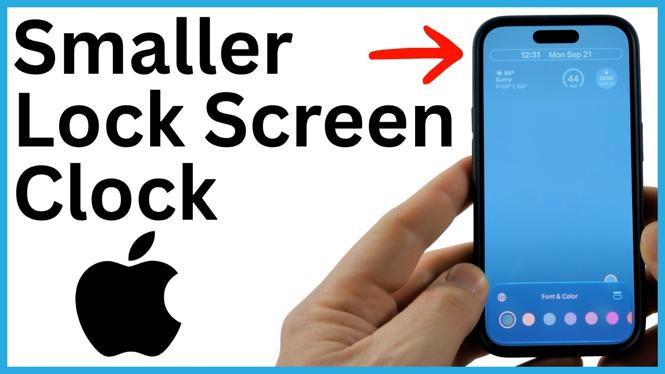
You can make the Lock Screen clock smaller by switching it to the new Compact Clock style in iOS 27. This is useful when the large time display covers too much of your wallpaper or makes your Lock Screen feel crowded.
The setting is part of the Lock Screen customization screen. You do not need to change your wallpaper, create a new Lock Screen, or adjust your iPhone display settings. Just open the Lock Screen editor, select the clock, and choose the compact option.
Video Tutorial
Make the iPhone Lock Screen Clock Smaller
Start from your iPhone Lock Screen. The clock size option appears when you are editing the Lock Screen itself, not while you are using an app or browsing through the regular Settings menus.
- Swipe down from the top of your iPhone until you see the Lock Screen.
- Long press an empty area of the Lock Screen.
- Select Customize.
- Select the clock.
- Select the small icon to the right of Font & Color.
- Your clock will switch to the compact style and become much smaller.
- Select a blank area of the Lock Screen.
- Select Done.
- Select the Lock Screen to return to it.
The compact clock is now saved to that Lock Screen. The next time you lock your iPhone, the smaller clock will appear at the top of the screen.
What the Compact Clock Changes
The Compact Clock option reduces the size of the time display on your Lock Screen. This gives your wallpaper more visible space and can make the layout look cleaner, especially if the main subject of your photo sits near the top of the image.
You can still use the Lock Screen clock controls to adjust its appearance. In the editor, select the clock first, then use the controls associated with Font & Color. The compact icon is the control that changes the clock to the smaller size shown in the tutorial.
This is a clock style choice for the Lock Screen you are currently customizing. If you use multiple Lock Screens, open each one you want to change and repeat the same process.
Save the Change Before Leaving
After selecting the compact icon, tap a blank area of the Lock Screen before selecting Done. This closes the clock controls so you can review how the smaller time looks against your wallpaper.
Take a moment to check the full Lock Screen before you save it. A compact clock can create more room around a photo, but you may also want to make sure the time remains easy for you to read. When you are happy with the result, select Done, then select the Lock Screen.
If You Cannot See the Smaller Clock Option
The Compact Clock feature shown here is available on an iPhone running iOS 27. Make sure you have opened the Lock Screen customization view, selected Customize, and tapped directly on the clock. The compact option is accessed from the small icon beside Font & Color.
If you are only viewing the Lock Screen normally, the clock cannot be resized from there. Long press a blank area first to enter the editor. Once you choose the compact style and save with Done, the smaller clock remains in place when you lock your iPhone.
Use a Smaller Clock for a Cleaner Wallpaper
The large Lock Screen time can hide part of a wallpaper, particularly a photo with a face, text, or other detail near the top. Compact Clock is a quick way to reduce that visual obstruction without replacing the image.
You can return to the same customization screen later if you decide you prefer a different look. Long press the Lock Screen, select Customize, select the clock, and use the icon next to Font & Color to change the clock style again. Select a blank area, then select Done to save your choice.
More iPhone Tutorials:
 Subscribe Now! 🙂

Discover more from Gauging Gadgets
Subscribe to get the latest posts sent to your email.