Hype a qualifying YouTube video from the app
You can Hype a video in the YouTube app to give it points and help it compete on the YouTube Hype leaderboard. The option is meant for eligible newer videos from smaller creators. You use free weekly Hypes, so it helps to save them for videos you genuinely want to support.
You can do this from the YouTube app on an iPhone, Android phone, or Samsung phone. The process is the same: open the video, use the video options, then choose Hype.
Video Tutorial
How to Hype videos on YouTube
- Open the YouTube app on your phone.
- Find and open the video you want to support.
- At the top of the video screen, select the three dots to the right of the diamond icon.
- Select Hype.
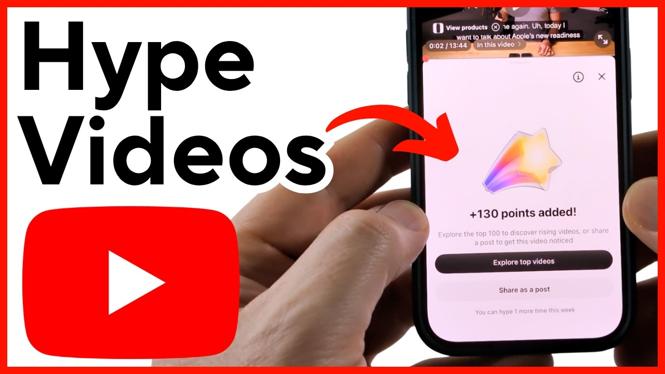
- Check the confirmation screen. You will see that points were added to the video.
- Review the message showing how many more times you can Hype a video that week.
- Select the X when you are done, then continue watching the video.
That is all you need to do. Each successful Hype adds points to that video. Those points can help hyped videos move up the Hype leaderboard, giving smaller channels another way to get noticed.
What happens after you select Hype
After you Hype a video, YouTube confirms that it added points. The same screen also tells you how many weekly Hypes you have left. This is useful because your free Hypes are limited each week.
You do not need to leave the video just because you used Hype. Close the confirmation with the X and keep watching. If you want to see more videos receiving support, you can also explore other top hyped videos from that screen.
Hype is separate from tapping the Like button. A like is still a normal way to show that you enjoyed a video, while Hype adds points through YouTube’s Hype feature. If your goal is to help an eligible creator’s newer upload climb the Hype leaderboard, use Hype when it is available.
Why the Hype option may not appear
If you open the three-dot menu and do not see Hype, the video may not qualify. First, check the age of the upload. You cannot Hype a video that is older than seven days.
The creator also needs to qualify for the feature. The channel must be from a partnered YouTuber, have at least 500 subscribers, and have Hype enabled on the account. A video can be perfectly normal to watch, like, and share while still not being eligible for Hype.
In other words, a missing Hype button does not necessarily mean there is a problem with your phone or YouTube app. It usually means the upload is too old or the channel does not meet the requirements for Hype.
Use your weekly Hypes carefully
Because YouTube shows how many Hypes remain for the week, you can keep track of your available support as you use the feature. Consider using them on recent uploads from creators you already follow and want more people to discover.
Before you Hype, make sure you are on the exact video you mean to support. Then open the three-dot menu and look for Hype. Once the points are added, you have completed the action for that video.
If a video is close to seven days old, use Hype before it becomes ineligible. For older videos, you can still support the creator in other normal ways, but the Hype option will not be available for that upload.
Quick checklist
- Use the YouTube app on your iPhone, Android phone, or Samsung phone.
- Open the video you want to support.
- Select the three dots near the top of the video screen.
- Choose Hype.
- Confirm that points were added.
- Check your remaining weekly Hypes.
- If Hype is missing, confirm the video is no more than seven days old and the creator is eligible.
Using Hype takes only a moment, but it gives eligible recent videos points toward the Hype leaderboard. It is a direct way to support smaller partnered channels that have enabled the feature.
More YouTube Tips & Tutorials:
 Subscribe Now! 🙂

Discover more from Gauging Gadgets
Subscribe to get the latest posts sent to your email.