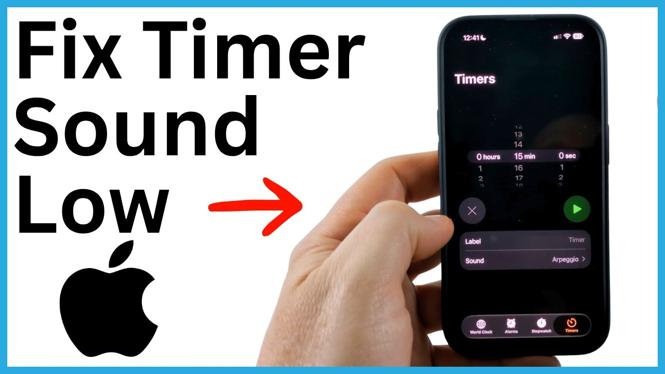
Your iPhone timer can be running normally but still be too quiet to hear from another room. The volume buttons on the side of the iPhone do not raise the sound played when a Clock app timer ends. You need to adjust the alert volume in Settings instead.
Start by increasing the Ringtone and Alerts volume. Then test the timer sound in the Clock app. If the alert still seems quieter than expected, check Attention Aware Features and pick a louder timer sound.
Video Tutorial
Raise the iPhone timer alert volume
The timer uses your iPhone’s ringtone and alert volume. This is separate from media volume, so raising the volume while listening to music, watching a video, or pressing the side volume buttons may not fix a quiet timer.
- Open the Settings app on your iPhone.
- Scroll down and select Sounds & Haptics.
- Find the Ringtone and Alerts volume slider.
- Drag the slider to the right to make timer alerts louder.
- Use the sound preview as you adjust the slider to choose a volume you can hear comfortably.
Set the slider high enough to hear the timer from where you normally leave your phone. For example, you may need more volume when cooking, doing laundry, working outside, or using your timer in a noisy room.
Keep in mind that this setting also affects other iPhone alerts that use the ringtone and alert volume. If the slider is set very high, incoming call ringtones and other alerts may also sound louder.
Why the side volume buttons do not fix it
It is easy to press the volume up button and assume the timer will become louder. In this case, that does not change the setting that controls the timer end sound. The side buttons are not the reliable way to adjust a Clock app timer alert.
Use Settings, then Sounds & Haptics, and raise Ringtone and Alerts. That is the volume control to check when your iPhone timer sound is too low.
If you adjusted the side buttons before, do not worry. You did not break anything. Just return to the alert slider and set the volume there. This also gives you a clearer preview of how loud your timer can be.
Test the timer sound in the Clock app
After raising the alert volume, test a timer before relying on it. A quick test confirms that the selected sound is loud enough and that the change worked.
- Open the Clock app.
- Go to the timer and open its sound selection.
- Select a timer sound to hear its preview.
- Listen from the distance where you would normally be when the timer ends.
- Return to Sounds & Haptics and raise Ringtone and Alerts again if needed.
This preview is useful because it lets you check the actual type of alert used by your timer. You do not need to wait for a long timer to finish just to find out the sound is still too quiet.
Choose a louder timer sound
Volume is only part of the issue. Some timer sounds are easier to miss than others, especially if they are soft, short, or similar to background noise in your home. In the Clock app, open the timer sound options and choose a sound that stands out to you.
Preview a few choices before deciding. A sharper or more distinct sound can be easier to notice than one that is technically playing at the same volume. Pick the option you can recognize quickly without needing to be right beside the iPhone.
If you use timers for food, medication reminders, workouts, or breaks, test your chosen sound in the environment where you use it. A sound that works well in a quiet bedroom may be harder to hear near a running dishwasher, television, fan, or outdoor traffic.
Turn off Attention Aware Features if alerts keep getting lowered
Attention Aware Features can automatically lower alert volume in some situations. If your timer alert seems loud during a test but becomes unexpectedly quiet later, turn off Attention Aware Features and test the timer again.
After changing that setting, run another short timer and listen without holding the phone. This helps you tell whether Attention Aware Features was reducing the alert volume or whether you need to raise the Ringtone and Alerts slider further.
Quick checks when the timer is still hard to hear
- Confirm that Ringtone and Alerts is not set too low.
- Preview the selected timer sound in the Clock app.
- Try a different timer sound that is more noticeable.
- Check whether Attention Aware Features is lowering alerts.
- Test the timer from another room or over your usual background noise.
Once the ringtone and alert volume is set correctly and you have selected a sound you can hear, your iPhone timer should be much easier to notice when it ends.
More iPhone Tips & Tutorials:
 Subscribe Now! 🙂

Discover more from Gauging Gadgets
Subscribe to get the latest posts sent to your email.