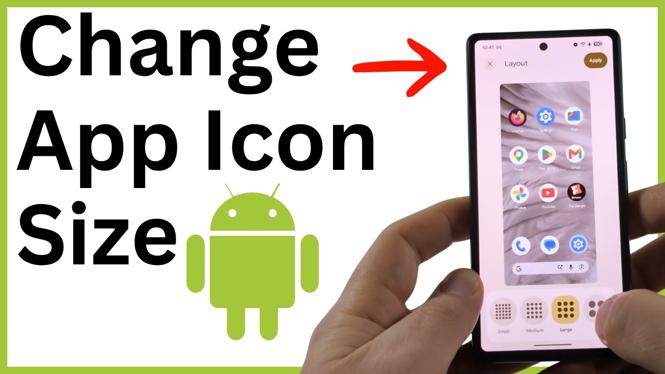
You can make Android app icons bigger or smaller from the home screen layout settings. On the phone shown here, the available choices are Extra large, Large, Medium, and Small. Changing this setting resizes the icons across your home screen, so you can choose a layout that is easier to see and tap.
These steps use the Wallpaper & style menu shown in the video. Samsung Galaxy phones use a different method, so do not expect the same menu options on every Android device.
Video Tutorial
Change the app icon size from your home screen
- Go to your Android phone’s home screen.
- Long press an empty area of the home screen. Do not press and hold an app icon.
- Select Wallpaper & style from the menu that appears.
- Scroll down until you find Layout.
- Select the icon size you want: Extra large, Large, Medium, or Small.
- Review the preview to see how the home screen will look with that size.
- Select Apply.
- Close Settings and return to your home screen. Your app icons will use the new size.
Choose the right layout size
The layout setting changes more than the appearance of one icon. It changes the overall spacing and arrangement of apps on the home screen. A larger option gives each app icon more room. A smaller option fits more icons into the available space.
Choose Extra large or Large if app icons are difficult to see or tap. This can make your most-used apps easier to identify at a glance. Larger icons also give the home screen a simpler look because fewer apps fit on each page.
Choose Medium if you want a balanced layout. This is useful when you want icons that are still easy to tap without making the home screen feel too spread out.
Choose Small when you want more apps visible on the same home screen page. The preview is especially useful here because small icons can make labels and tap targets harder to see for some people.
Use the preview before applying changes
After you select a size under Layout, Android shows an example of the new layout. Check the preview before selecting Apply. Look at the icon spacing and consider how many apps you normally keep on the home screen.
If the icons look too small, select a larger option before applying the change. If the layout feels too sparse, try a smaller option. You can return to Wallpaper & style and change the layout again whenever you want.
If you have a Samsung Galaxy phone
The method in this guide is not the same one used on Samsung phones. The video specifically notes that Samsung has a different process. If you long press your Samsung home screen and do not see the same Wallpaper & style layout choices, use instructions made for Samsung Galaxy devices instead of trying to match these screens.
This difference is normal. Android phones can use different home screen software and settings, even when they run Android. The important thing is to look for controls related to the home screen layout, grid, or icon sizing on your specific device.
Change it back later
You are not permanently changing your apps or deleting anything when you adjust icon size. You are only changing how app icons appear on the home screen. To switch back, long press an empty part of the home screen, open Wallpaper & style, scroll to Layout, select another size, and choose Apply.
Try each option if you are unsure which one fits your home screen best. The preview lets you compare the sizes before the change is applied.
More Android Tips & Tutorials:
 Subscribe Now! 🙂

Discover more from Gauging Gadgets
Subscribe to get the latest posts sent to your email.