Turn on camera access first
If your Android camera will not open, or an app cannot use it for calls, photos, or video, start with the phone-wide camera setting. Android has a privacy control called Camera access. When this is off, apps and services cannot use your phone’s camera, even if you previously gave a specific app permission.
Turn that control back on, then test the camera again. If the problem only happens in one app, check that app’s camera permission next. If the Camera app itself is missing or will not launch, make sure the app has not been disabled.
Video Tutorial
Enable camera access on your Android phone
This setting controls access to the camera across Android. It is the first setting to check when more than one app cannot access the camera.
- Open Settings on your Android phone.
- Scroll down and select Security and privacy.
- Scroll down to Privacy controls.
- Under Controls, find Camera access.
- Make sure Camera access is turned on.
After you enable this setting, open the Camera app or the app that was having trouble. Try taking a photo, starting a video, or opening the app’s camera feature. If it works, the system-wide privacy setting was blocking camera use.
If it still does not work in one particular app, leave Camera access turned on and move to the app permission check below. An app can still be denied access on its own.
Allow camera permission for an app
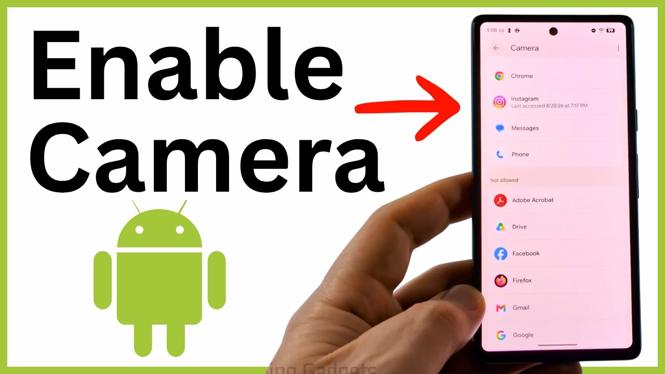
Permission Manager shows which apps can use the camera and which apps are blocked. This is useful when the camera works normally but fails in a social app, video calling app, or another app that needs a camera.
- Go back to Security and privacy in Settings.
- Open Privacy controls.
- Select Permission manager.
- Choose Camera.
- Scroll to the apps that are not allowed to use the camera.
- Select the app you need to fix.
- Choose Allow while using the app or Ask every time.
Allow while using the app lets the app use your camera when you are actively using it. This is usually the best choice if you use the camera feature regularly. Ask every time makes Android request permission whenever the app needs the camera. Choose this if you want to decide each time.
Close the app, open it again, and try its camera feature. The next time you use it, the camera should be enabled based on the permission option you selected.
Find Permission Manager if Privacy controls is not visible
Settings layouts can differ between Android phones. If you cannot find Privacy controls in the location above, use the search option in Settings and search for Permission manager. Once you open it, select Camera and review the apps that are not allowed.
This gets you to the same permission list without guessing through different Settings sections. Check the exact app that cannot use the camera. Changing permission for another app will not fix the issue.
Enable the Camera app if it is disabled
If the main Camera app is missing, will not open, or appears to be turned off, check its app settings. A disabled Camera app cannot be opened until it is enabled again.
- Return to the main Settings page.
- Select Apps.
- Choose See all.
- Select the search button.
- Type Camera.
- Select Camera from the results.
- If the app is disabled, select the option to enable the Camera app.
Once enabled, return to your app list and open Camera. This check applies to the phone’s Camera app. If the camera opens there but another app still cannot use it, go back to Permission Manager and allow that specific app to use the camera.
Use the right fix for the symptom
Start with Camera access when camera problems affect several apps. Use Permission manager when only one app cannot open the camera. Check the Camera app under Apps when the Camera app is missing or disabled.
Testing after each change helps you identify what was blocking camera use. In most cases, turning on system camera access, allowing the affected app, or enabling the Camera app restores the ability to take photos, record video, and use the camera in supported apps.
More Android Tips & Tutorials:
 Subscribe Now! 🙂

Discover more from Gauging Gadgets
Subscribe to get the latest posts sent to your email.