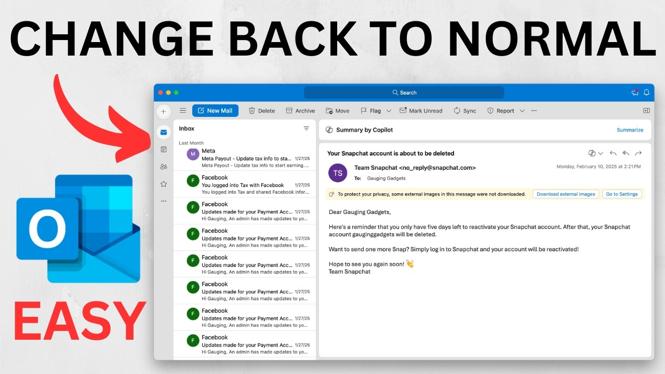
If Outlook suddenly looks wrong, first identify what changed. A missing Reading Pane is usually a layout setting. If the whole app looks unfamiliar, you may be using the new Outlook and want to return to Classic Outlook instead.
These are two separate fixes. Start with the Reading Pane if you can still see your message list but no longer get an email preview when you select a message. Use the Classic Outlook option only when you want the older Outlook appearance back.
Video Tutorial
Restore the Reading Pane in Outlook
The Reading Pane shows the contents of the selected email without opening that message in a separate window. When it is turned off, Outlook can feel very different because you only see the inbox list.
To put the preview pane back on the right side of the inbox, change the Reading Pane layout setting.
- Open Outlook and go to your inbox or another mail folder.
- Select View from the top menu.
- On the right side of the View options, select Layout.
- Select Reading Pane.
- Choose Show on the right.
Outlook will show the Reading Pane to the right of your email list. Select a message and its contents should appear in that pane. This lets you review emails from the inbox instead of opening each one separately.
If this was the only problem, your Outlook view should now be back to the layout you expect. Your folders and messages stay in place. You are only changing where Outlook displays the selected email preview.
Switch from New Outlook Back to Classic Outlook
If Outlook has a different overall design, restoring the Reading Pane may not be enough. The app may be using the new Outlook experience. You can switch back to the older version from the control at the top of Outlook.
- Look at the top of the Outlook window for New Look.
- Turn New Look off.
- Confirm that Switch Back to Classic Outlook is selected.
- Select Continue.
Outlook will reset and then open in the older, Classic Outlook version. You may need to answer prompts during the switch. Follow the questions Outlook displays until the process finishes.
This option changes more than a single pane or folder view. It returns you from the new Outlook look to the older Outlook experience. If the buttons, menus, and general layout changed unexpectedly, this is the setting to use.
Which Outlook Fix Should You Use?
Use the Reading Pane setting when the rest of Outlook looks familiar and you only lost the email preview. Go to View, then Layout, then Reading Pane, and choose Show on the right.
Use the Classic Outlook switch when the complete app looks new or different. Turn off New Look, select Switch Back to Classic Outlook, and choose Continue.
It is possible to need both changes. For example, you might switch back to Classic Outlook and then still want to check that the Reading Pane is visible on the right. Make one change at a time so you can tell which setting corrected the issue.
Check That Your View Is Back to Normal
After restoring the Reading Pane, click an email in your inbox. You should see a preview of that message on the right side of the Outlook window.
After switching back to Classic Outlook, wait for Outlook to reset and reopen. You should be back in the older Outlook version rather than the new Outlook look. If Outlook asks you questions as it changes versions, complete those prompts before checking the layout.
A changed Outlook view can make routine email tasks harder than they need to be. Restoring the Reading Pane gives you back your message preview, while switching off New Look returns you to Classic Outlook when the entire interface has changed.
More Outlook Tips & Tutorials:
 Subscribe Now! 🙂

Discover more from Gauging Gadgets
Subscribe to get the latest posts sent to your email.