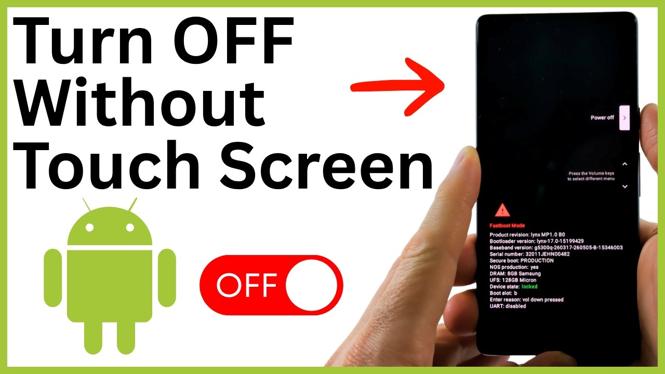
Use the physical buttons when the screen will not respond
You can turn off many Android phones without using the touchscreen. This is useful if the display is black, the glass is cracked, or taps and swipes no longer work.
The method shown here uses the Power button and Volume Down button to reach the phone’s fastboot menu. From there, you use the volume buttons and power button to shut the phone down. Keep in mind that Samsung phones use a different process, so these steps are not the right choice for a Samsung device.
Video Tutorial
Turn off an Android phone with no touchscreen
- Locate the physical Power button and Volume Down button on your Android phone.
- Press and hold both buttons at the same time.
- Keep holding them for about 30 seconds. Do not let go if the phone takes a screenshot. That is expected on some phones and does not mean the process failed.
- Continue holding while the screen turns off. Keep holding the buttons until the phone enters the fastboot menu.
- Use the physical volume buttons to move through the fastboot menu.
- Press the Volume Up button to make the needed selection, then press the Power button to turn the phone off.
When the phone powers down successfully, you should feel it vibrate. At that point, it is off and you did not need to touch the screen.
If your display is completely black
A black display makes it impossible to see the fastboot menu, but you can still follow the same button timing. Hold Power and Volume Down together for around 45 seconds. This gives the phone enough time to turn off and reach the fastboot menu.
After roughly 45 seconds, press Volume Up once, then press the Power button. The phone should vibrate when it shuts down.
Timing matters more when you cannot see the display. Try to keep steady pressure on both buttons for the full time. Releasing them too early can stop the process before the fastboot menu appears.
Why the screenshot does not mean you need to start over
On some Android phones, pressing Power and Volume Down briefly takes a screenshot. You may see the screenshot animation if the display still works. Keep holding both buttons anyway.
The screenshot is just the phone responding to the first part of the button press. The longer hold is what turns off the display and continues toward the fastboot menu. Do not release the buttons when you see the screenshot.
Important details before you try this
- This process is for Android phones that use the fastboot menu shown in the video.
- Samsung phones are different and need Samsung-specific instructions.
- You only need the physical buttons. A working touchscreen is not required.
- If the screen works, wait until you can see the fastboot menu before using the volume buttons.
- If the screen does not work, use the 45-second hold, then press Volume Up and Power as described above.
What to do if the phone stays on
First, try the button combination again. Make sure you are holding Power and Volume Down at exactly the same time. Hold them continuously instead of pressing and releasing them.
If your display is working, watch for the screen to turn off, then keep holding until fastboot appears. If you cannot see anything, use the longer 45-second timing before pressing Volume Up and then Power.
Also confirm that your phone is not a Samsung model. The button method in this guide is not the same one used on Samsung phones. Using the right process for your phone model helps you avoid getting stuck at an unexpected menu.
Turn the phone back on later
After the phone is fully powered off, press and hold the physical Power button to start it again. If the display or touchscreen problem continues after restarting, the issue may be with the screen, the touch layer, or another hardware component. The button process above still gives you a way to shut the phone down safely when you cannot use the display.
More Android Tips & Tutorials:
 Subscribe Now! 🙂

Discover more from Gauging Gadgets
Subscribe to get the latest posts sent to your email.