Facebook cannot display your current password
If you are already signed in, Facebook does not have a setting that reveals your existing password. The practical way to check it is to see if your phone saved the Facebook login in a password manager.
Start inside the Facebook app. Going to the password change screen can trigger your saved-password option, which lets you confirm the password without changing it. If no saved login appears, check the password manager on your iPhone, Android phone, Chrome browser, or Samsung phone.
Video Tutorial
Check for a saved password from Facebook
- Open the Facebook app.
- Open the menu. Depending on your version of the app, select the three lines beside the Facebook logo at the top left, or select the three lines on your profile image at the bottom right.
- Scroll down and choose Settings & privacy, then select Settings.
- Under your account, select Account Center.
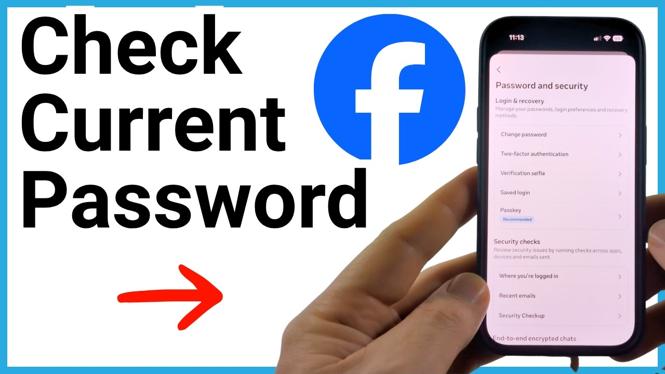
- Select Password and security, then choose Change password.
- Select your Facebook account.
- Select the Current password field.
At this point, your phone may show a password manager suggestion. Select the saved Facebook password if it appears. The password can fill into the field, and you can use the small eye icon to view it. You may also see a key icon that opens saved passwords, where you can look for the correct Facebook account.
This screen does not reveal the password directly from Facebook. It only helps you access a password that was already saved on your device.
Check the Passwords app on iPhone
If the suggestion did not appear in Facebook, check the Passwords app directly. This is useful when the login is saved on your iPhone but is not offered in the Facebook app.
- Swipe from right to left through your Home Screen pages until you reach the App Library.
- Search for Passwords and open the app.
- Search for Facebook at the bottom, or select All and browse the saved entries.
- Open the Facebook entry you find.
- Select the password to view it. You can also copy it if you need to paste it into a login field.
If Facebook is not listed, look through entries that use a Facebook-related website or an unfamiliar label. Saved logins do not always appear under the exact app name you expect.
Check Google Password Manager in Chrome
On Android, or on any phone where you saved the login to your Google account, Chrome can show your stored passwords.
- Open the Chrome browser on your phone.
- Select the three dots at the bottom right.
- In the top menu, scroll right and select Password Manager.
- Scroll through the saved passwords and look for Facebook.
- Open the matching entry to view the saved login details.
Check that the email address or username in the entry matches the Facebook account you are trying to access. You might have more than one Facebook login saved.
Check Samsung Pass on a Samsung phone
Samsung phones can also store sign-in details in Samsung Pass. Check there if Facebook does not appear in Chrome Password Manager.
- Swipe up from the Home Screen to open your apps.
- Find and open Samsung Pass.
- Enter your PIN if prompted.
- Under Sign-in info, select Apps/websites.
- Look through the list for your Facebook login and open it to check the saved password.
If you cannot find the saved login
If Facebook, Passwords, Chrome Password Manager, and Samsung Pass do not show your login, the current password was probably never saved on that phone. You cannot retrieve an unsaved password from Facebook.
Return to the Facebook password screen and select Forgot your password?. Facebook can guide you through resetting the password using the email address, phone number, or other recovery details saved on your account. Create a new password that you can store safely in your password manager after you regain access.
Do not share a copied password or leave it visible on screen. Once you have confirmed it or used it to sign in, close the password manager and keep the login details private.
More Facebook Tips & Tutorials:
 Subscribe Now! 🙂

Discover more from Gauging Gadgets
Subscribe to get the latest posts sent to your email.