Sign in to Netflix on your TV with your phone
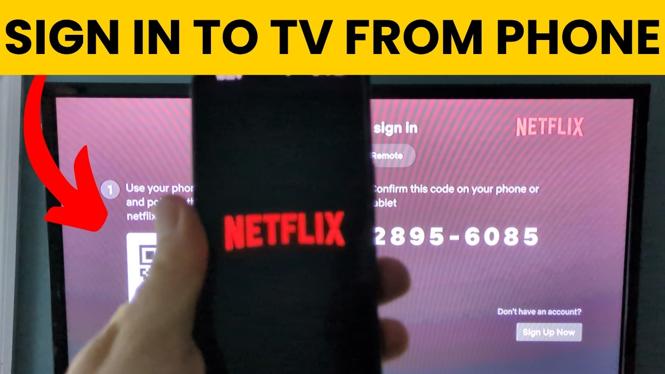
You can connect Netflix to your TV from your phone by scanning the QR code shown on the TV sign-in screen. This signs the Netflix app on the TV into the account already available on your iPhone or Android phone.
This is useful when you do not want to enter your Netflix email address and password with a TV remote. You will use your phone’s camera, select the link it detects, choose your Netflix profile, and confirm the sign-in code.
Before you start, make sure the Netflix app is open on your TV and that your phone can scan QR codes. You should also be signed in to the Netflix app on your phone. If you are not signed in on your phone, sign in there first so you can continue with the TV connection.
Video Tutorial
Connect Netflix to your TV from your phone
-
Open the Netflix app on your TV.
-
Go to the Netflix Home section if needed. The sign-in option may not appear until you are on this section.
-
Scroll down and select Sign In.
-
Wait for Netflix to display a QR code or a sign-in code on the TV screen.
-
Take out your iPhone or Android phone and open its camera.
-
Point the camera at the QR code on the TV. Keep the code clearly visible in the camera view.
-
When your phone detects the QR code, select the link that appears. You may need to unlock your phone first.
-
The link opens the Netflix app on your phone. If Netflix asks, choose the profile you want to use.
-
Check that the code shown on your phone matches the code shown on the TV.
-
Select Sign Into TV on your phone.
-
Give the TV a moment to load. Netflix will sign in, then you can select a profile on the TV and start watching.
What this connection does
This method signs your Netflix account into the Netflix app installed on the TV. Your phone confirms the account and profile instead of making you type sign-in details with the remote.
After the TV is signed in, use the Netflix app on the TV to browse and play shows or movies. You can select the profile you want on the TV after the account finishes loading.
This is different from using a cast button to send Netflix playback from your phone to another device. The steps here are for signing into Netflix on the TV with the QR code displayed by the TV app.
If the QR code does not scan
Start by checking that the TV is still showing the QR code. If the screen has changed, return to Sign In in the Netflix app and display the code again.
Hold your phone steady and make sure the entire QR code is visible in the camera view. Avoid glare on the TV screen if possible. Your camera should show a link when it recognizes the code.
If the link opens Netflix but you are not signed in, sign in to Netflix on the phone first. Then return to the TV code and scan it again. The phone needs access to the Netflix account you want to use on the TV.
Also compare the codes carefully before selecting Sign Into TV. Only continue when the code on the phone matches the code on the TV. This confirms that your phone is connecting to the correct television.
Use the right profile after signing in
Once Netflix finishes loading on the TV, choose your profile from the profile screen. Netflix then opens that profile on the television, so its viewing history and recommendations are used there.
If more than one person uses the account, selecting the correct profile is helpful before starting a show. You can still change profiles later from Netflix on the TV if needed.
The key part is the confirmation on your phone. Scan the TV QR code, open the detected link, verify the matching code, and select Sign Into TV. After a short wait, Netflix is ready on the TV.
More Netflix tips & tutorials:
 Subscribe Now! 🙂

Discover more from Gauging Gadgets
Subscribe to get the latest posts sent to your email.