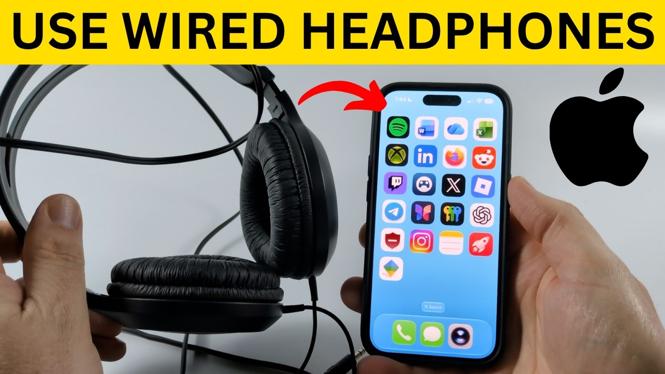
Most wired headphones use a 3.5 mm headphone plug, but iPhones do not include a 3.5 mm headphone jack. You can still use those headphones with the right adapter. The adapter you need depends on the port at the bottom of your iPhone.
iPhone 14 Pro and older Lightning models need a Lightning to 3.5 mm headphone jack adapter. iPhone 15, iPhone 16, iPhone 17, and newer USB-C models need a USB-C to 3.5 mm adapter. Once connected, your iPhone sends music, calls, videos, and other audio through the wired headphones instead of the phone speaker.
Video Tutorial
Check the plug on your wired headphones
Start by looking at the connector attached to your headphones or earbuds. Most standard wired headphones have a round 3.5 mm headphone plug. This is the familiar small metal plug found on many headphones, speakers, computers, and older phones.
A 3.5 mm plug cannot plug straight into current iPhones. You need an adapter with a 3.5 mm headphone jack on one end and the correct iPhone connector on the other.
Some wired headphones use a Lightning connector or a USB-C connector instead. Those headphones can plug directly into an iPhone with the matching port, so you do not need a 3.5 mm adapter.
Choose the correct iPhone headphone adapter
Check the charging port on the bottom edge of your iPhone before getting started. Using the wrong adapter is the most common reason wired headphones will not connect.
- Lightning iPhones: Use a Lightning to 3.5 mm headphone jack adapter for headphones with a standard 3.5 mm plug. This includes iPhone 14 Pro and other older iPhone models with a Lightning port.
- USB-C iPhones: Use a USB-C to 3.5 mm adapter for standard 3.5 mm wired headphones. iPhone 15 and newer models use USB-C.
- Lightning wired headphones: Plug them directly into a Lightning iPhone.
- USB-C wired headphones: Plug them directly into a USB-C iPhone, such as an iPhone 15, iPhone 16, or iPhone 17.
If your headphones have a 3.5 mm plug, make sure the adapter is made for the port on your specific iPhone. A Lightning adapter does not fit a USB-C iPhone, and a USB-C adapter does not fit a Lightning iPhone.
Connect 3.5 mm wired headphones to your iPhone
The connection takes only a few seconds. You do not need to pair anything in Bluetooth settings, and you do not need to turn on the headphones first.
- Plug the 3.5 mm headphone connector fully into the headphone jack on your adapter.
- Plug the adapter into the charging port on the bottom of your iPhone.
- Start playing music, a video, podcast, or other audio on your iPhone.
- Put on the headphones and adjust the volume using the iPhone volume buttons if needed.
Your iPhone should switch audio output to the headphones automatically. You can use wired headphones for private listening, video audio, and phone calls without connecting Bluetooth headphones or AirPods.
Confirm that your headphones are connected
If you want to check the connection, swipe down on your iPhone to view the audio status. With the headphones connected through the adapter, the iPhone shows that audio is going to headphones.
Then play something with audio. If you hear it through the headphones, the setup is complete. If sound still comes from the iPhone speaker, unplug the adapter and headphones, then reconnect both ends firmly. Make sure the headphone plug is pushed all the way into the adapter and the adapter is fully seated in the iPhone port.
Use wired headphones with the right iPhone port
For a Lightning iPhone, connect standard 3.5 mm headphones through a Lightning to 3.5 mm adapter. For an iPhone 15 or newer USB-C model, use a USB-C to 3.5 mm adapter instead. If your wired headphones already have the same connector as your iPhone, plug them directly into the phone.
That is all you need to listen without Bluetooth. Disconnect the adapter or wired headphones when you want your iPhone audio to return to its speaker or another connected audio device.
More iPhone Tips & Tutorials:
 Subscribe Now! 🙂

Discover more from Gauging Gadgets
Subscribe to get the latest posts sent to your email.