Create a Post From Your Instagram Profile
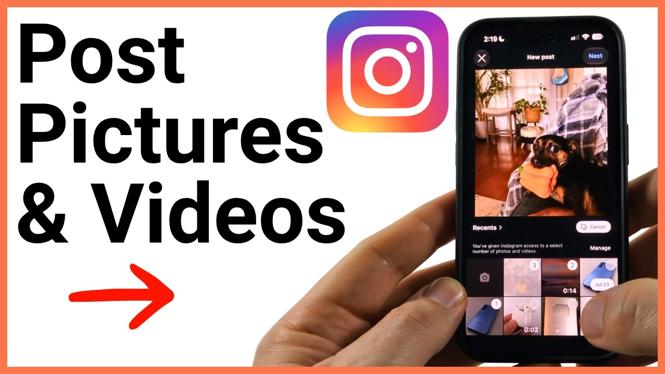
You can post a single photo, a video, or a mix of both to your Instagram feed from the Instagram app. The process is the same on an iPhone, Android phone, or Samsung phone. You can also combine up to 20 photos and videos in one carousel post, so followers can swipe through everything you want to share.
Before you start, make sure the pictures and video clips you want to use are available on your phone. Instagram shows your available media after you begin creating the post.
Video Tutorial
Choose Photos and Videos for Your Post
- Open the Instagram app on your phone.
- Select your profile icon in the bottom-right corner of the screen.
- Select the plus icon in the top-left corner.
- Select Post.
- Browse the pictures and videos shown below the preview area, then select the first item you want to post.
After selecting a photo or video, you can adjust its framing. Use the available zoom and crop controls to decide how it appears in the post. This is useful when an image has extra space around the subject or when you want a closer view of part of the photo.
If you only want to share one picture or video, you can continue after choosing it. If you want to make a carousel post, add more media before moving on.
Add Multiple Items to a Carousel Post
To include more than one item, select Select. Then choose the additional photos and videos you want in the post. Instagram lets you add up to 20 items.
A carousel can contain only pictures, only videos, or both pictures and videos together. Pick each item in the order you want people to see it. Take a moment to check your choices before continuing, especially if your post tells a story or shows steps in a specific sequence.
- Select Select after choosing your first photo or video.
- Tap each additional photo or video you want to include.
- Keep selecting items until your post includes everything you need, up to 20 total items.
- Select Next in the top-right corner when your selection is ready.
Instagram then shows the photos and videos you added. Swipe through them to review every item. This is your chance to make sure the full set is included before you prepare the post details.
Edit Each Photo or Video
On the editing screen, swipe through your selected photos and videos. You can make changes to each item individually. Instagram gives you options to add audio, add text overlays, and apply filters if you want them.
Filters can change the overall appearance of a photo or video. Text overlays can add a short message directly to an item. Audio can be added when it fits the post. You do not need to use every editing option. A simple post with no filter, text, or audio is also ready to share.
Review the carousel one more time after making edits. Check that the text, filters, and audio choices work with the media you selected. When you are happy with the post, select Next.
Add the Post Details Before Sharing
The final screen is where you add information that appears with your Instagram post. You can write a caption to explain the photo or video, identify people in the post, and add a location. Instagram also provides options for polls, audio, and choosing the audience for the post.
- Add a caption for your post.
- Add a poll if you want viewers to respond to a question.
- Add audio if you want to include it with the post.
- Select Tag people to identify people connected to the photos or videos.
- Select Add location to attach a place to the post.
- Choose the audience for the post.
Your caption can be short or detailed. Use it to give context, explain what is happening in the video, or share details that are not obvious from the images. Tags help connect the post to the people featured in it, while a location can help show where the photos or videos were taken.
Share Your Instagram Post
When all the details look right, select Share. Instagram publishes the post to your profile, where it will display the photo, video, or carousel you selected. For a carousel, people can swipe through the pictures and video clips in the order you chose.
That is all you need to do to post pictures and videos on Instagram. Start with one item if you want a quick feed post, or use Select to build a larger carousel with up to 20 photos and videos.
More Instagram Tips & Tutorials:
 Subscribe Now! 🙂

Discover more from Gauging Gadgets
Subscribe to get the latest posts sent to your email.