How to Clear Clipboard on iPhone
When you copy text, links, or images on your iPhone, that information is stored in the clipboard for easy access. However, this stored data can compromise your privacy if sensitive information is left unaddressed. Fortunately, clearing your clipboard on iPhone is a quick and simple process that helps you maintain control over your personal data. In this tutorial, we’ll guide you through this essential procedure step by step.
Video Tutorial
Why You Might Be Looking for This Tutorial
There are several reasons why someone may want to clear their clipboard on an iPhone. Perhaps you’ve copied sensitive information, such as personal passwords or credit card numbers, and you want to ensure they are not easily accessible. Additionally, you may want to free up memory and enhance your device’s performance by reducing the amount of data stored in the clipboard. Moreover, regularly clearing your clipboard can be a good habit for maintaining your privacy and security.
Steps to Clear Clipboard on iPhone
Step 1: Copy an Innocuous Item
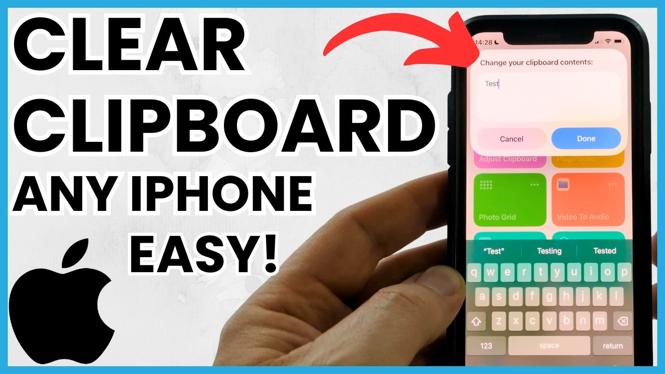
The easiest way to clear your clipboard is to simply copy a new item. This can be a single space or a random word. By doing this, you effectively overwrite the previous clipboard content.
Step 2: Use the Notes app
1. Open the Notes app on your iPhone.
2. Create a new note.
3. Paste whatever you have copied previously (tap and hold, then select ‘Paste’).
4. Select the text and tap on ‘Cut’ or delete it, which removes it from the notes and effectively clears your clipboard.
Step 3: Restart Your iPhone
Another effective method of clearing the clipboard is to restart your iPhone:
1. Press and hold the power button until the slider appears.
2. Slide to power off your device.
3. After a few seconds, turn it back on. This will reset the clipboard memory.
Step 4: Use a Third-Party App
While the built-in methods outlined above are effective, some users prefer using third-party applications available on the App Store that can manage the clipboard history. Search for clipboard manager apps and select one that suits your needs, ensuring it has good ratings and reviews.
Conclusion
Clearing your clipboard on iPhone is a simple yet vital task for protecting your personal information. Whether you’re looking to maintain your privacy or simply free up some memory, knowing how to clear your clipboard is beneficial for every iPhone user. Follow the steps outlined above to ensure your clipboard remains a secure place for the data you deem safe.
More iPhone Tutorials:
 Subscribe Now! 🙂

Discover more from Gauging Gadgets
Subscribe to get the latest posts sent to your email.