Sync your Gmail contacts through your Google account
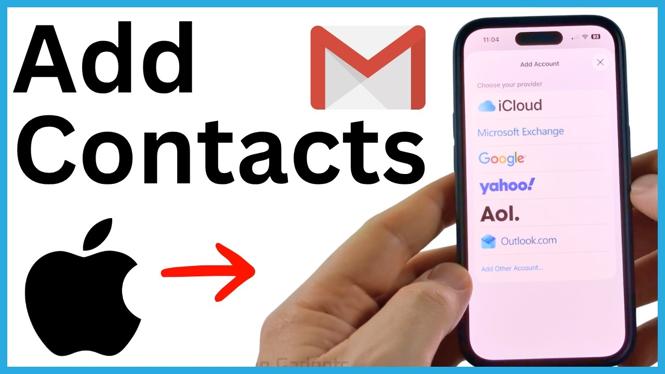
You can add your Gmail contacts to the iPhone Contacts app by connecting your Google account in Settings and turning on contact syncing. Once it is enabled, the contacts saved in your Google account should appear alongside the contacts already on your iPhone.
The important setting is the Contacts switch for your Google account. Adding the account alone is not enough if that switch is turned off.
Video Tutorial
Add your Google account in iPhone Settings
If you have not added the Gmail account to your iPhone yet, start by adding it through the Mail settings. You will sign in to Google in your browser, then allow iOS to access the account so it can retrieve your contacts.
- Open the Settings app on your iPhone.
- Scroll to the bottom of Settings and use the search field to search for Mail.
- Select Mail when it appears in the results.
- Select Mail Accounts.
- Select Add Account if your Gmail account is not already listed.
- Enter your email address, or select the option to choose from a list.
- Select Google.
- Select Open Browser, then sign in to the Google account that contains the contacts you want on your iPhone.
Use the same Google account where you normally save or manage your Gmail contacts. If you use more than one Google account, make sure you sign in to the one that has the names and numbers you need.
Allow access and turn on Contacts
After you sign in, Google will show a screen asking you to allow iOS access to your Google account. You need to approve this access for the iPhone to sync information from the account.
- Allow iOS to access your Google account when prompted.
- Select Continue at the bottom of the screen.
- On the account options screen, make sure the switch next to Contacts is turned on.
- Select Save.
Your iPhone can now sync the contacts from that Google account. The Contacts switch is the setting that controls this part. If it is off, Gmail contacts will not be added to the Contacts app.
Check that your Gmail contacts appear
Close Settings, then open the Contacts app on your iPhone. Your Google contacts should begin appearing in the contact list. You can use those contacts from your iPhone just like other saved contacts, including when you need to call, text, or email someone.
The first sync can take a moment, especially if the Google account has many contacts. Give the phone a little time to pull the list from Google before assuming something is wrong.
If the contacts do not show up
First, go back to the Google account settings and confirm that Contacts is still turned on. This is the main setting to check if the account was added but the names are missing from the Contacts app.
If the switch is on and you still do not see the contacts, close the Contacts app. You can also restart your iPhone. After the phone starts again, open the Contacts app and check the list another time. The phone may pull the Gmail contacts after restarting.
Keep Google contacts available on your iPhone
Once the Google account is connected and Contacts syncing is enabled, you do not need to enter each Gmail contact by hand on your iPhone. The iPhone Contacts app can show the contacts stored in your Google account, giving you one place to find the people you have already saved in Gmail.
If you later add another Google account, repeat the same process for that account and turn on its Contacts switch before saving it. Each account needs permission and contact syncing enabled separately.
More iPhone Tips & Tutorials:
 Subscribe Now! 🙂

Discover more from Gauging Gadgets
Subscribe to get the latest posts sent to your email.