How to Fix Missing Emojis on Samsung Phone
Are you experiencing the frustrating issue of missing emojis on your Samsung phone? Whether you own a Galaxy S25, S24, a model from the A series, or even a Z Flip or Z Fold, it’s easy to feel disconnected without the fun and expressive emojis. Thankfully, this guide will help you restore your emojis quickly and easily, ensuring your messaging experience is as vibrant as it should be. Let’s dive into how to troubleshoot this issue without any costly repairs or extra applications.
Video Tutorial
Why You Might Be Looking for This Tutorial
Many users face issues with their emoji keyboards disappearing or not functioning correctly for several reasons, including software updates, system errors, or accidental changes in settings. If you notice that your emojis are missing, it can hinder your ability to communicate effectively with friends and family. This tutorial will guide you through the necessary steps to restore your emojis and get your Samsung phone back to its full expressive potential.
Steps to Fix Missing Emojis on Samsung Phone
Step 1: Check for Software Updates
First, ensure that your phone’s software is up to date. Outdated software can lead to glitches in emoji functionality. Navigate to Settings > Software update and click on Download and install. If an update is available, follow the prompts to install it.
Step 2: Restart Your Phone
A simple restart can often resolve minor software glitches. Press and hold the power button, then select Restart. Wait for your device to reboot and check if the emojis are back.
Step 3: Check Keyboard Settings
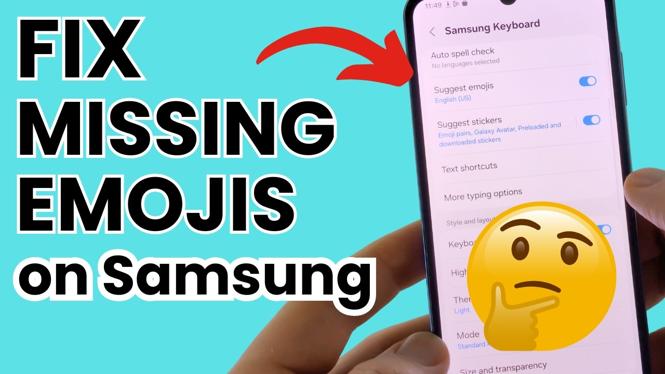
Ensure that your emoji keyboard is enabled. Go to Settings > General management > Language and input > On-screen keyboard. Select your keyboard (Samsung Keyboard or another) and make sure the option for Emoji is enabled.
Step 4: Clear Cache and Data of Messaging App
If emojis are still missing, try clearing the cache and data for your messaging app. Go to Settings > Apps, find your messaging app, tap on it, and select Storage. Then, click on Clear cache and Clear data (note that clearing data may reset your chat history).
Step 5: Factory Reset (Last Resort)
If none of the above steps worked, you may consider a factory reset. This should be your last resort, as it will erase all data on your device. Ensure to back up your important data before proceeding. Go to Settings > General management > Reset > Factory data reset and follow the instructions on the screen.
After completing these steps, your missing emojis should be restored, and you can once again express yourself fully in your conversations. If the problem persists, consider seeking support from Samsung or your phone carrier for further assistance.
More Samsung Phone Tips & Tutorials:
 Subscribe Now! 🙂

Discover more from Gauging Gadgets
Subscribe to get the latest posts sent to your email.