How to Stop Text Messages on iPad
Receiving unwanted text messages on your iPad can be quite bothersome, especially when you want to focus on other tasks or simply enjoy some peace and quiet. Whether you’re using an iPad Pro, iPad Air, or iPad Mini, knowing how to stop text message notifications will enhance your user experience. This guide will walk you through the easy steps to disable text message forwarding and turn off iMessage on your iPad without affecting your iPhone messages.
Video Tutorial
Why You Might Be Looking for This Tutorial
If you own an iPad, you may notice that it mirrors the text messages you receive on your iPhone. While this feature can be convenient, it can also lead to distractions from unwanted notifications. Perhaps you’re in a meeting, trying to concentrate on a project, or simply wish to declutter your device. Learning how to stop text messages on your iPad is a practical solution for anyone looking to create a more focused digital environment. This tutorial will provide you with the steps necessary to manage your notifications while keeping your iPhone messages intact.
Steps to Stop Text Messages on iPad
Step 1: Turn Off Text Message Forwarding
To prevent your iPad from receiving text messages sent to your iPhone, start by disabling text message forwarding:
- Open the “Settings” app on your iPad.
- Scroll down and tap on “Messages.”
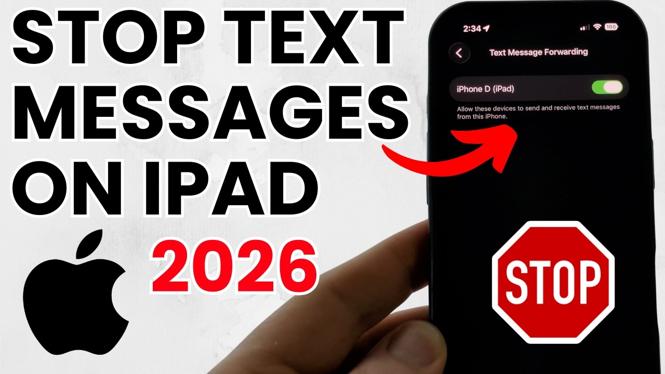
- Locate the “Text Message Forwarding” option.
- If it is turned on, toggle the switch to off. This will stop text messages from being forwarded to your iPad.
Step 2: Disable iMessage on Your iPad
If you want to stop receiving iMessages entirely on your iPad, follow these steps:
- In the “Messages” settings, find the “iMessage” option.
- Toggle the switch next to “iMessage” to turn it off. This will ensure that your iPad no longer receives any messages through Apple’s iMessage service.
Step 3: Turn Off Notifications for Messages
If you still want to use iMessage on your iPad but don’t want notifications, you can simply turn off message notifications:
- Go back to “Settings” and tap on “Notifications.”
- Scroll down and select “Messages.”
- Toggle off “Allow Notifications” to stop receiving alerts for new messages.
Conclusion
By following these simple steps, you can easily stop text messages and iMessage notifications on your iPad. This can help create a more serene environment and allow you to focus on what matters most without distractions. Remember, these changes will not affect the text messages and notifications on your iPhone, ensuring you stay connected on your desired device.
More iPhone Tutorials:
 Subscribe Now! 🙂

Discover more from Gauging Gadgets
Subscribe to get the latest posts sent to your email.