You can record your Samsung Galaxy screen with the built-in Screen recorder. It is available from the panel you open by swiping down from the top-right area of the screen. Before you start, choose if the recording should include device audio, microphone audio, or no sound.
This is useful when you need to save gameplay, show someone how to use an app, or make a visual walkthrough. You can also turn on touch indicators so viewers can see exactly where you tap.
Video Tutorial
Open Screen Recorder on your Samsung phone
First, unlock your Samsung phone. The swipe location matters here. Swiping down from the top center opens your notifications. To get to the controls that include Screen recorder, swipe down from the top-right of the display, near the battery icon.
- Swipe down from the top-right corner of the screen.
- Look for the Screen recorder control. Its icon looks like a small box with a camera.
- Tap Screen recorder.
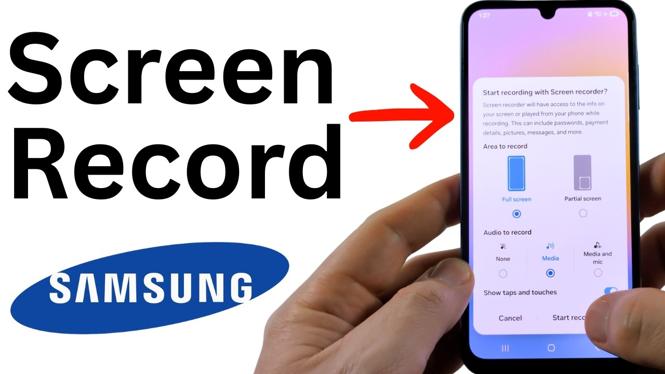
The Start recording with Screen recorder screen opens. This is where you select what part of the screen to capture and decide which sound source to use.
Add Screen Recorder if you cannot see it
If the Screen recorder button is missing from the panel, add it to your available controls. You only need to do this once unless you remove it later.
- Swipe down from the top-right corner to open the controls panel.
- Tap the pencil icon at the top of the panel.
- When the edit screen appears, tap Add a control at the bottom.
- Find the Capture section near the top.
- Tap Screen recorder to add it to the panel.
- Optionally, press and hold the Screen recorder control, then drag it higher in the panel so it is easier to reach.
- Tap Done.
Swipe down from the top-right again and you should now see Screen recorder. Tap it whenever you want to make a new recording.
Choose screen recording and audio settings
After you tap Screen recorder, set your recording options before starting. Select Full screen when you want to capture everything visible on your phone display.
You can then choose the audio that goes into the video:
- Media records audio playing on your phone, such as game audio.
- Media and mic records the phone’s media sound and your voice through the microphone.
- No sound records the screen without audio.
If you are explaining steps in an app, turn on Show taps and touches. A visible indicator appears each time you tap the display, and those taps are included in the finished recording. This makes it much easier for someone else to follow your actions.
Start and stop the recording
Once your options are set, tap Start recording. Your Samsung phone counts down before it begins. When the recording indicator and red icon appear, the screen recorder is active.
- Open the controls panel and tap Screen recorder.
- Select Full screen.
- Choose Media, Media and mic, or No sound.
- Turn on Show taps and touches if you want tap indicators in the video.
- Tap Start recording.
- Wait for the countdown, then use your phone normally while the recording runs.
- Tap the small Stop button when you are finished.
After you stop, your phone displays a Recording saved message. Stop the recording as soon as you have captured the part you need so the video does not include extra steps or private information.
Find and play your saved recording
Your completed recording is available from the saved-recording notification. Swipe down from the top center of the screen to open the notifications panel, then select the video from the recording notification.
Choose your video player to open it. If you enabled touch indicators, you will see the on-screen tap markers in playback. You can check the video right away to make sure the correct screen area and audio option were captured before sharing or keeping it.
Quick screen recording checklist
For a clean Samsung screen recording, open the controls panel from the top-right, tap Screen recorder, choose Full screen, and confirm your sound setting. Use Media for device audio, Media and mic when you need narration, or No sound for a silent capture. Turn on touch indicators only when viewers need to follow your taps. Then start the recording, use the Stop button when finished, and open the saved video from your notifications.
More Samsung Phone Tips & Tutorials:
 Subscribe Now! 🙂

Discover more from Gauging Gadgets
Subscribe to get the latest posts sent to your email.