Turn on Professional Mode first
To monetize your Facebook account, start by turning on Professional Mode. This adds creator-focused features to your profile, including a dashboard where you can review monetization options and post insights.
Professional Mode does not mean every earning program is automatically available to every account. After you enable it, use the Monetize area of your dashboard to see the programs Facebook shows for your account.
You can do this from the Facebook mobile app. The menu icon can appear in a different place depending on your account layout, but the settings option you need is the same.
Video Tutorial
Enable Professional Mode on your Facebook profile
- Open the Facebook app.
- Open the main menu. If you see three lines near the Facebook logo, select them. On some accounts, the three-line menu appears below your profile image instead.
- Scroll down and select Settings & privacy.
- Select Settings.
- Scroll down to the Audience and visibility section.
- Select Turn on professional mode.
- Review the information Facebook provides about Professional Mode, including monetization and insights, then select Update your profile.
Facebook will ask you to choose a default audience for your content. Select Confirm to continue with the audience shown. If you want to review or change the visibility choices first, select Edit settings.
For content you want people to discover, a public audience makes sense. You can still change individual audience settings if you do not want certain profile information visible publicly. The setup screen can let you choose options such as friends or no one for items you want to keep more private.
Choose how your profile is described
During setup, Facebook lets you choose a category that describes your profile. The available list may include choices such as public figure, digital creator, or influencer. Pick the description that best fits the content you plan to share, then select Next.
This category appears on your profile. It helps visitors understand what your account is about, so use a label that matches your actual posts. You do not need to choose a category just because it sounds more business-focused.
After you finish this part, Facebook takes you to your professional dashboard. You may see a short walkthrough of the available dashboard features. You can go through it, then return to the dashboard whenever you need to review your account tools.
Check the Monetize section
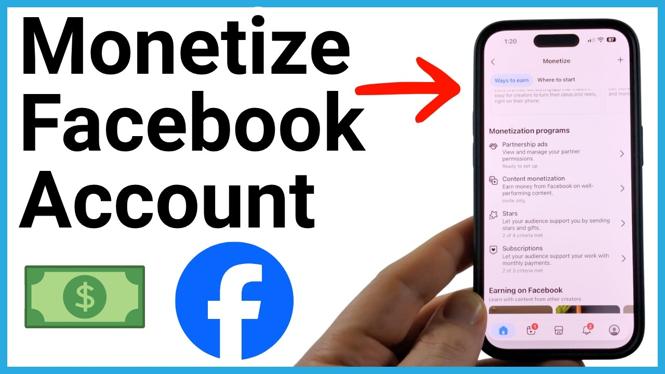
From the professional dashboard, select or scroll to Monetize. This is where Facebook displays the monetization programs associated with your profile.
One option shown is Content monetization. This relates to getting paid based on posts and views on your content. The dashboard can also show Partnership ads, which lets you manage permissions and link partners when you create a post.
Other options may include Stars and Subscriptions. Stars give supporters a way to send support through eligible content. Subscriptions are another program listed in the monetization area. The programs shown on your dashboard are the ones to review, since Facebook may present different options based on your account.
Use this section as your main place to check what is available. If a program appears, open its details and follow the setup information Facebook provides. If you do not see a program, avoid assuming it is active just because Professional Mode is turned on.
Open your professional dashboard again
You do not have to repeat the Professional Mode setup every time you want to check monetization. You can open the dashboard directly from your Facebook profile.
- Go to your Facebook profile.
- Select the three dots in the top-right corner of the profile page.
- Select Dashboard.
This returns you to the professional dashboard, where you can check the Monetize area and view insights about your posts. Insights are statistics that help you see how your content is performing.
Keep your public content settings in mind
If your goal is to earn from content, people need to be able to see the posts, Reels, and videos you share. During the Professional Mode setup, Facebook shows the audience settings for your profile. Review them carefully before confirming.
You can make the content you want to share broadly public while keeping other profile details limited to friends or hidden. That gives you more control over what visitors can view without changing every part of your account.
Once Professional Mode is on, return to the dashboard regularly. Check the monetization programs shown there, review your post insights, and use the options available for your Facebook profile.
More Facebook Tips & Tutorials:
 Subscribe Now! 🙂

Discover more from Gauging Gadgets
Subscribe to get the latest posts sent to your email.