Start with a restart
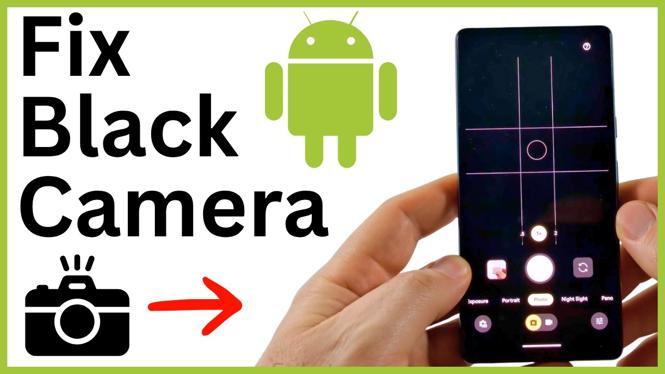
A black screen in the Android Camera app usually means the app cannot access the camera, a permission is blocked, or the app needs to be reset. Start with the quickest fix before changing any settings. Close the Camera app, then restart your phone. This can clear a temporary issue that prevents the camera from capturing an image.
After the phone restarts, open Camera and test both photos and video. If the preview is still completely black, work through the privacy and app settings below. Test the camera after each section so you know which change fixed the problem.
Video Tutorial
Restart your Android phone
- Swipe away from the Camera app so it is no longer open.
- Hold down your phone’s power button.
- Select Restart.
- Wait for Android to finish restarting, then open Camera again.
If holding the power button does not show the power menu, swipe down until you see the power button in the bottom-right corner. Hold that button, then select Restart.
A restart is worth doing first because the camera can fail after an app or service gets stuck in the background. You do not lose your photos or other personal data by restarting the phone.
Turn on camera access in Privacy Controls
Android has a system-wide camera access control. When this control is off, apps and services on the phone cannot use the camera. The Camera app may open but show only a black screen.
- Open Settings.
- Scroll down and select Security and privacy.
- Scroll down and select Privacy controls.
- Under Controls, find Camera access.
- Turn on Camera access if it is switched off.
Return to the Camera app and check the preview again. If camera access was disabled, turning it on gives your apps permission to use the phone’s camera hardware again.
Allow camera permission for the affected app
If the built-in Camera app works but another app shows a black screen when you try to take a photo or record video, check that individual app’s camera permission. You can also use these steps if the Camera app itself is listed under blocked permissions.
- Stay in Settings, then return to Security and privacy.
- Select Privacy controls.
- At the top of the page, select Permission manager.
- Select Camera.
- Scroll down to the Not allowed section.
- Select the app that cannot use the camera.
- Choose Ask every time or Allow only while using the app.
Repeat this for any app you want to use with the camera. Choose a permission setting only for apps you recognize and want to have camera access. Then open that app and try its camera feature again.
Force stop and re-enable the Camera app
If camera access is on and the needed app permissions are allowed, reset the Camera app through Android’s app settings. The process force stops the app, disables it, and then enables it again.
- Return to the main Settings page.
- Scroll up and select Apps.
- Select See all.
- Scroll down and select Camera.
- Select Force stop.
- Select Disable.
- Confirm that you want to disable the app.
- Enable the Camera app again.
Once the Camera app is enabled again, open it and check the screen. This resets the app’s current state and can clear an issue that kept the preview from loading. It is especially useful when the camera remains black after a restart and after you have confirmed that camera access and permissions are allowed.
Check the camera after each change
Use the Camera app after every fix rather than changing everything at once. First test after the restart. Next test after turning on Camera access. Then test after updating the relevant app permission. If needed, finish with the force stop, disable, and re-enable process for Camera.
This order keeps the troubleshooting simple. A phone-wide privacy control can block every camera app, while a blocked permission affects only the app listed under Not allowed. Resetting the Camera app is the final step shown when the black screen remains.
More Android Tips & Tutorials:
 Subscribe Now! 🙂

Discover more from Gauging Gadgets
Subscribe to get the latest posts sent to your email.