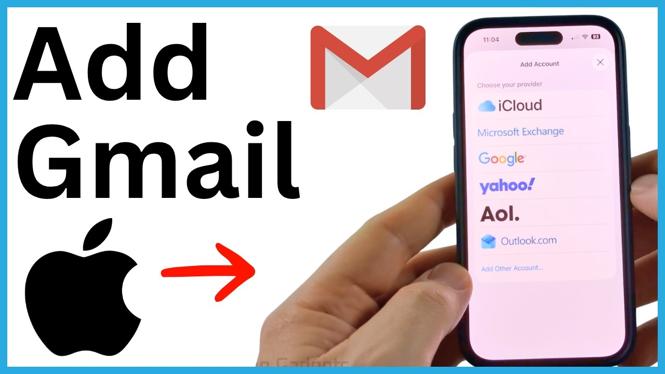
Add your Google account through iPhone Settings
Adding a Gmail account to your iPhone lets you use your Google email in the Mail app instead of signing in through a browser each time. You can also choose to sync Google Contacts, Calendar, and Notes with your iPhone at the same time.
The account is added from the iPhone Settings app. In the steps below, you will search for the Mail settings, select Google as the account provider, sign in, and choose the items you want to keep synced.
Have your Google account sign-in details ready before you begin. You will complete the Google sign-in step in a browser window that opens from Settings.
Video Tutorial
How to add a Gmail account on iPhone
- Open the Settings app on your iPhone.
- Scroll down and use the Settings search to search for Mail.
- Select Mail Apps from the search results.
- Choose Mail Accounts.
- Select Add Account.
- Choose Google from the list of account types. You can type Gmail in the account search area, or select Choose from a list and then choose Google.
- Select Open Browser when prompted.
- Sign in to the Google account you want to add to your iPhone.
- After the sign-in finishes, choose the Google items you want to sync. The available options are Mail, Contacts, Calendar, and Notes.
- Select Save to finish adding the account.
Your Gmail account will now appear in the Mail Accounts section. The sync options you selected determine which Google information is available on your iPhone.
Choose what to sync from Gmail
The final screen is where you control which Google data connects to your iPhone. Turn on Mail if you want to read, send, and manage Gmail messages in the iPhone Mail app.
Turn on Contacts if you want contacts associated with your Google account to sync to your iPhone. Turn on Calendar to include your Google calendar information. You can also enable Notes if you want to sync Google notes through this account setup.
You do not need to enable every option. For example, you can add Gmail for email only by leaving Mail enabled and turning the other options off. Select Save after making your choices. You can return to the account later through Mail Accounts if you need to review the account or its sync settings.
Open your Gmail messages in the Mail app
Once the account is saved, open the Mail app to view your Gmail. If you do not see Mail on your Home Screen, swipe from right to left until you reach the App Library. Type Mail in the App Library search, then open the app.
Your Gmail account should be available in Mail after the account is added. You can use it to view incoming messages and manage your Gmail without repeatedly opening a web browser to sign in.
Check that the account was added
Go back to Settings, search for Mail, open Mail Apps, and select Mail Accounts. The Google account you just signed in to should appear in this list.
If the account is listed, the setup is complete. Open the account to check the sync choices you made for Mail, Contacts, Calendar, and Notes. If you only need Gmail messages on your iPhone, make sure Mail is selected before leaving the account settings.
This setup connects the same Google account across the iPhone features you selected. That means your email can appear in Mail while your Google contacts and calendar information can also be available on the phone when those options are enabled.
More iPhone Tips & Tutorials:
 Subscribe Now! 🙂

Discover more from Gauging Gadgets
Subscribe to get the latest posts sent to your email.