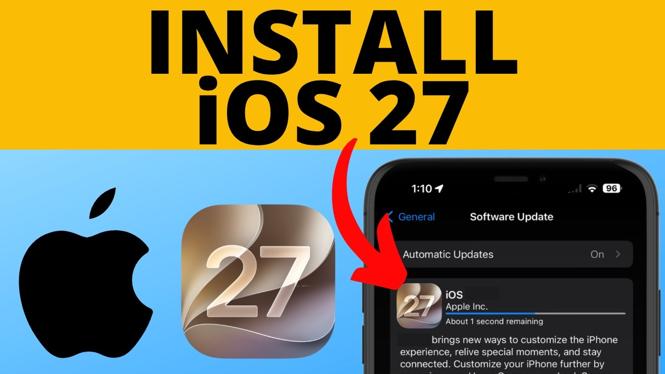
You can install iOS 27 directly from your iPhone’s Settings app. The update downloads from Apple, then your iPhone restarts to finish the installation. Keep the phone charging while the download and installation run so the battery does not run out.
Install iOS 27 from Software Update
- Open Settings on your iPhone.
- Scroll down and select General.
- Select Software Update.
- Wait for the Software Update page to load. iOS 27 should appear as an available update.
- Select Update to start. If iOS 27 is not the main update shown, look near the bottom of the page for Upgrade to iOS 27 and select it instead.
- Enter your iPhone passcode when asked.
- Read the terms and conditions, then select Agree. Select Agree again to confirm.
- Wait while your iPhone requests the update from Apple and downloads iOS 27.
- Return to the update screen after the download finishes. You may need to manually select the option to install the downloaded update.
- Wait for your iPhone to reboot. The restart is part of the installation process.
Do not worry if the download or installation takes several minutes. Leave your iPhone connected to power and let it complete the process. Using the phone during the update can interrupt what you are doing, so it is best to start when you do not need it for a few minutes.
Video Tutorial
What to do after your iPhone restarts
When the reboot finishes, swipe up and unlock your iPhone. You should now be running iOS 27. Select Continue to move through the post-update screens.
Apple may show you some of the new features during setup. Go through these screens before selecting the final option to get started. Some features can be turned on or off during this part of setup, so review each choice rather than quickly skipping through it.
One option shown with iOS 27 relates to Liquid Glass. If you prefer a less transparent appearance, you can limit the effect by using Reduced Transparency. The setup screens let you review the available choices before you begin using the updated iPhone.
If iOS 27 does not appear
Stay on the Software Update page long enough for it to load completely. The iPhone needs time to check Apple’s servers and display available software. If a different update appears first, scroll to the bottom of that screen and check for Upgrade to iOS 27.
If you see either Update or Update Now, select the option shown on your iPhone and follow the passcode and agreement prompts. The wording can depend on where your phone is in the update process, but the rest of the installation follows the same flow.
Keep your iPhone powered during the update
Downloading and installing iOS 27 uses battery power. Connect your iPhone to a charger before you begin, especially if the battery is low. Keep it plugged in while the update downloads and while the phone restarts.
After the restart, unlock the iPhone, select Continue, and finish the setup prompts. Once you reach the get started screen, iOS 27 is installed and ready to use.
More iPhone Tips & Tutorials:
 Subscribe Now! 🙂

Discover more from Gauging Gadgets
Subscribe to get the latest posts sent to your email.