How to Delete a Card from Apple Wallet
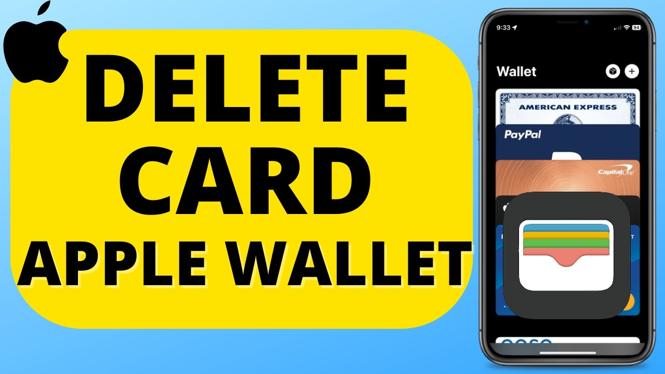
If you’re looking to manage your payment options more effectively, knowing how to delete a card from your Apple Wallet can be very useful. Whether you’re getting a new credit card, need to remove a card for security reasons, or simply want to clean up your wallet, this guide will walk you through the steps. This process is quick and straightforward, making it easy to keep your financial information up to date.
Video Tutorial
Why You Might Be Looking for This Tutorial
There are several reasons why you might want to delete a card from your Apple Wallet. Perhaps you’ve recently received a new debit or credit card and need to update your payment information. Maybe you’re concerned about security and want to remove a card you no longer use. Alternatively, you might just want to declutter your digital wallet. Whatever the reason, this tutorial will assist you in successfully removing any card from your Apple Wallet with ease.
Steps to Delete a Card from Apple Wallet
Step 1: Open the Apple Wallet App
Begin by locating and launching the Apple Wallet app on your iPhone. The app icon is typically a white wallet on a gradient background.
Step 2: Select the Card You Want to Remove
Once inside the app, scroll through your stored cards to find the one you wish to delete. Tap on that card to open its details.
Step 3: Access Card Information
After selecting the card, look for the ellipsis (three dots) or the ‘i’ (information) icon, usually located in the corner of the screen. Tap on it to access more options.
Step 4: Remove the Card
Scroll down to find the option that says “Remove Card.” Tap on this option. A confirmation dialog may appear to ensure you want to proceed with removing the card.
Step 5: Confirm Deletion
Confirm the action by tapping on “Remove” in the confirmation dialog. Once confirmed, the card will be deleted from your Apple Wallet.
Conclusion
Deleting a card from your Apple Wallet is a simple process that enhances your control over your payment options. With this guide, you can efficiently manage your financial information and ensure that your digital wallet reflects your current needs. If you encounter any issues during the process, refer back to the video tutorial or leave your questions in the comments for assistance.
More iPhone Tips & Tutorials:
 Subscribe Now! 🙂

Discover more from Gauging Gadgets
Subscribe to get the latest posts sent to your email.